My site had 34 plugins installed the last time I counted. Eleven of them I couldn’t explain the purpose of without opening the plugin page and reading the description. That’s not a confession about being disorganized. That’s just what six years of “install this to fix that one thing” looks like on any blog that’s been running long enough.
Most plugin advice doesn’t help here. “Delete unused plugins” assumes the expensive ones are sitting there unused, and usually they aren’t. The expensive ones are running every single day, doing something you actually need, just doing it inefficiently, redundantly, or on every page load instead of once.
Why “Just Delete Unused Plugins” Only Solves Half the Problem
Deactivating the plugin you installed once for a migration and forgot about is real, easy value. It’s also the smaller half of the problem.
The bigger cost usually comes from plugins you’re actively using that overlap with each other. Two plugins each writing meta tags because you installed a second SEO tool without fully retiring the first. A caching plugin and a hosting-level cache fighting over the same job. An image optimization plugin re-checking every image on every page load instead of once at upload time. None of that shows up when you sort your plugin list by “last used.” It shows up when you look at what each plugin is actually doing on every request.
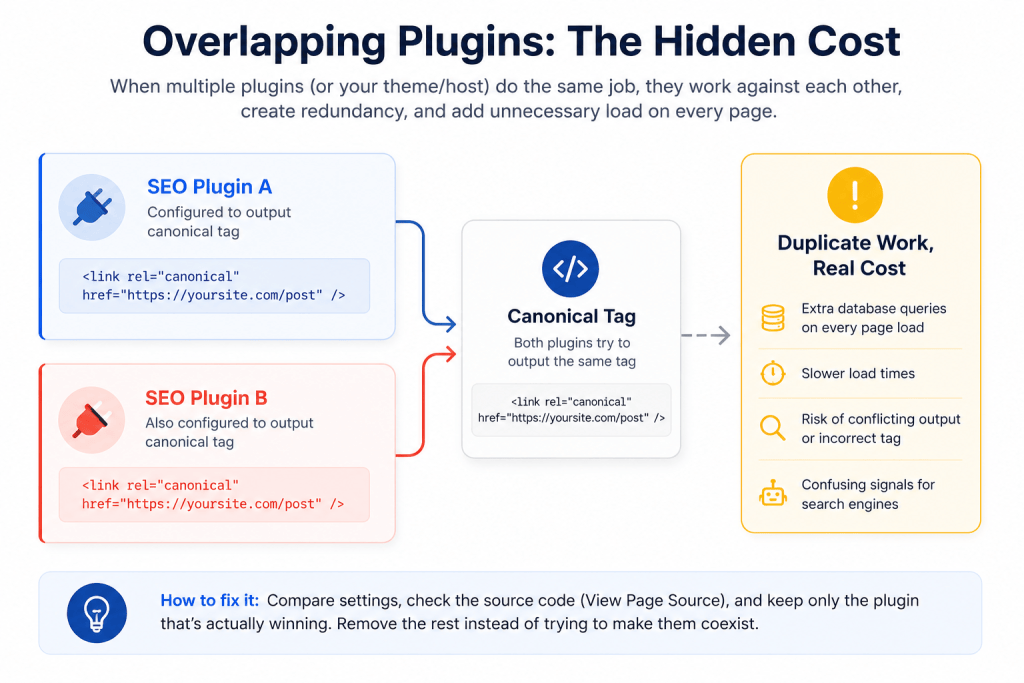
I found exactly this kind of overlap on my own site: two SEO plugins, both writing the canonical tag, one of them silently losing that fight on every single post. Neither looked “unused.” Both had settings I’d configured. It took actually checking the rendered HTML to notice only one tag was making it through.
The Four Categories Every Plugin Falls Into
Every plugin on a working site falls into one of four buckets. Sorting your list this way, instead of by install date or plugin size, is what actually surfaces the cost.
- Core function, does something the site genuinely can’t run without (forms, security, backups)
- Overlapping function, does something another plugin, or the theme, or the host, already does
- Rarely-used function, installed for a specific task that’s finished (a one-time migration tool, a contest plugin from a giveaway two years ago)
- Background tax, runs on every single page load regardless of whether that page needs it that day

The fourth category is the one people miss most. I ignored it for years. A plugin can be genuinely useful and still be a background tax if it’s checking, scanning, or loading assets on pages that have nothing to do with its job. The overlapping-function bucket catches new plugin categories too, not just the old guard of SEO and caching tools. The llms.txt generators covered in this setup guide are a current example: install two of them and they’ll fight over the same file, the exact same overlap pattern as the SEO plugins below, just on a newer piece of the stack.
How to Actually Measure Plugin Cost
Guessing at cost from plugin size or install date gets it wrong more often than it gets it right. A five-year-old plugin might be leaner than something installed last month. Age tells you nothing.
The actual measurement comes from a query profiler. Query Monitor is the free option most WordPress sites can install directly; some hosts, Pressable and Rocket.net among them, also expose a performance panel that breaks load time down by plugin without needing a separate tool. Either way, the number that matters is database queries and load time attributed to each individual plugin on a typical page, not the homepage, not an empty page, an actual post with images and comments.
When I ran this on my own site, one social-share plugin was responsible for 14 separate database queries on every single post, checking share counts across five networks I hadn’t actually enabled buttons for in three of them. Deactivating the buttons in settings hadn’t stopped the queries. Only removing the plugin did.

Here’s what that specific profiler run actually showed, ranked by cost:
| Plugin | Queries Per Post Load | Category |
|---|---|---|
| Social share counter | 14 | Background tax |
| Older SEO plugin | 4 | Overlapping function |
| Caching plugin | 3 | Overlapping function (with host cache) |
| Contact form plugin | 2 | Core function |
| Image optimizer | 1 | Core function |
Two plugins out of five accounted for 18 of the 24 total queries on a single page load. That’s the pattern worth looking for: cost concentrates in a small number of plugins, and it’s rarely the ones you’d guess from memory alone.
| Plugin Type | Typical Symptom | How to Catch It |
|---|---|---|
| Core function | Rarely a problem on its own | Usually fine as-is |
| Overlapping function | Duplicate meta tags, conflicting cache headers | Compare settings pages side by side |
| Rarely-used function | Zero recent activity in its own logs | Check last-used date inside the plugin, not just install date |
| Background tax | High query count on pages unrelated to its job | Query Monitor, per-plugin breakdown |
The Audit Walkthrough
Here’s the actual process, plugin by plugin.
Start with the query profiler running and load a typical post, not the homepage. Sort the plugin breakdown by query count or load time, highest first. The top three or four entries are where almost all the real cost lives; the rest of the list is usually close to negligible.
For each of those top entries, ask which of the four categories it falls into. If it’s core function, leave it. If it’s overlapping, open the competing plugin’s settings and figure out which one is actually winning, then remove the loser rather than trying to make both coexist. If it’s rarely-used, check whether the task it was installed for is actually finished. If it’s background tax, check whether its heavy work can be scoped down, restricted to certain pages, or scheduled instead of running on every request.
I’ve done this walkthrough on four client sites now, and the pattern repeats almost exactly. Two plugins account for most of the cost. Every time. That compounding cost matters even more once those sites share a server, plugin-driven memory bloat is exactly what runs a shared VPS out of resources faster than the traffic numbers alone would suggest.
On my site, the two SEO plugins turned out to be the overlapping case. AIOSEO was the one actually winning the canonical tag fight; the older plugin was configured but losing silently. Removing the older one dropped four unnecessary database queries per page and closed a small but real risk of duplicate meta data confusing search crawlers. The same duplicate-output problem shows up with WooCommerce product schema too, worth checking separately if the site runs a store.
A Second Worked Example: The Caching Overlap
The caching plugin from that same profiler run is worth walking through separately, because it’s a different failure mode than the SEO overlap.
I’d installed it years earlier on a different host that had no caching layer of its own. When I migrated hosts, the plugin came along automatically as part of the site export and kept running exactly as configured, generating and storing its own cached pages on a server that was already caching at the edge.
Neither cache was wrong on its own. Running both meant every page was being cached twice, using extra disk space and, worse, occasionally serving a stale plugin-level cache even after the host’s edge cache had already updated with new content. A typo fix I’d made to a post sat uncorrected for visitors for almost six hours because the plugin’s own cache hadn’t cleared on the same schedule as the host’s.
The fix wasn’t removing caching entirely. It was checking which layer the host already handled, in this case, full-page edge caching, and disabling only that overlapping piece of the plugin while keeping the parts it did that the host didn’t, database query caching in this instance.
What to Do With Each Category
Category by category, here’s the actual decision, not just “remove it if it’s bad.”
Core function stays, full stop. These are rarely where the savings are, and the migration risk of touching them usually outweighs any small gain.
Overlapping function gets consolidated, not both kept “just in case.” Pick the one with better settings or lower cost, migrate any configuration that matters, then fully remove the other rather than just deactivating it. Running both is just paying twice for the same job.
Rarely-used function gets deactivated first, deleted after a week if nothing breaks. Deactivating instead of deleting immediately gives a safety window without leaving dead weight running.
Background tax gets scoped down before it gets removed entirely. A lot of these plugins have a setting to restrict where they load, which turns a site-wide cost into a page-specific one without losing the function.
Where the Audit Points Back to Hosting
Sometimes what looks like a plugin problem is actually a hosting limitation the plugin is compensating for. A caching plugin doing unusually heavy lifting is often filling a gap that a host’s own edge caching should be handling. WordPress.com vs. Rocket.net for Bloggers covers what each platform actually handles at the hosting level versus what still needs a plugin on top.
The same goes for image optimization. If a plugin is re-processing images on every load instead of once, that’s sometimes a sign the host isn’t serving a CDN-cached version in the first place. Pressable: The WordPress Hosting Built for Next-Generation Demands and How and What to Look For in a Web Hosting Provider are both worth a look if the audit above keeps turning up the same “plugin working overtime” pattern across multiple categories, since that’s usually a hosting-level fix rather than a plugin-by-plugin one.
Building This Into a Yearly Habit
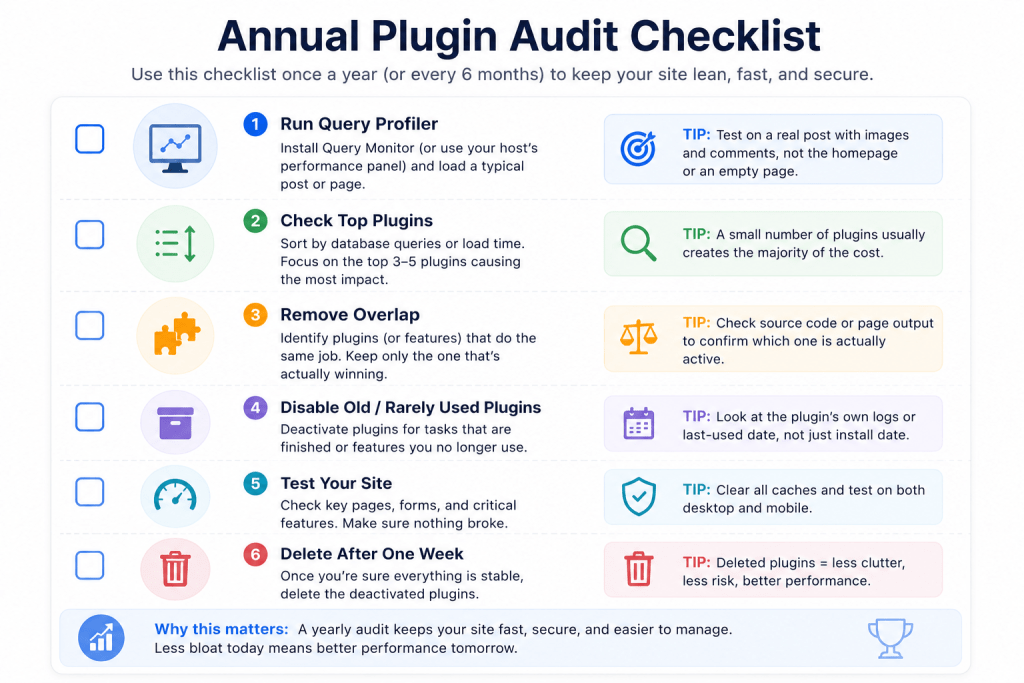
Doing this audit once fixes whatever’s accumulated up to that point. Plugins keep getting added after that, which means the same overlaps show up again eventually if nothing tracks them.
Keep a plain list of every plugin with the date it was installed and the specific task it was installed for. When that task finishes, the entry gets a line through it rather than getting deleted from the list entirely, the same way a visible redirect list prevents rediscovering the same broken link twice. A habit that’s written down somewhere outside a settings page is a habit that actually survives past the week you set it up.
Twenty minutes a year for the profiler check, plus whatever time the one-line install log takes to maintain, is a small cost against finding another 18-query plugin sitting unnoticed for another three years. Cheap insurance.
Questions People Ask About WordPress Plugin Bloat
Is there a “safe” number of plugins to have installed? No. A site with 40 lightweight, well-scoped plugins can outperform one with 10 poorly-configured ones. Count is a bad proxy for cost. The audit above measures actual load time and query count per plugin, which is the number that matters.
Does deactivating a plugin without deleting it actually save anything? Mostly yes for load time and query count, since an inactive plugin’s code doesn’t run on the front end. It does still take up disk space and can occasionally re-activate itself during an update, so deleting after a safety window is worth doing once you’re confident it’s not needed.
How do I know if two plugins are doing the same job without breaking something by removing one? Compare their settings pages side by side first. If both are configured to do the same thing, check the actual output, view page source for meta tags, check response headers for caching, rather than trusting either plugin’s own dashboard. Whichever one is actually winning in the output is the one to keep.
Is a page builder plugin automatically “bloat”? Not automatically. A page builder is core function if you’re actively building pages with it. It becomes background tax specifically on posts and pages that don’t use any of its features but still load its scripts and styles anyway, which is worth checking with the query profiler rather than assuming.
How often should I actually run this audit? Once a year is usually enough for an established blog. It’s worth an extra pass any time load time noticeably changes after adding a new plugin, since that’s the clearest signal something needs a closer look sooner than the annual check.
What if removing a plugin breaks something on the site? Deactivate rather than delete for the first week, and check the site’s front end and admin area for anything that looks off before deleting for good. Most breakage from removing a plugin shows up immediately, a missing shortcode, a broken form, rather than days later, so a short waiting window catches nearly all of it.
Do free plugins cost more in performance than premium ones? Not inherently. Price has little to do with query count or load time. A well-coded free plugin can easily outperform a bloated premium one. The audit above measures actual cost regardless of what the plugin charges, which is a better signal than price either way.
Conclusion
Thirty-four plugins wasn’t actually the problem on my site. Four of them running unnecessary queries on every single post was. The count never mattered. The per-plugin cost did, and it only shows up once you actually measure it instead of guessing from how long a plugin’s been installed.
Run the query profiler on one typical post this week. Sort by cost, not by name. Whatever sits at the top of that list is worth twenty minutes of attention before you install anything new.