

I pulled up the Rich Results Test on a client’s WooCommerce product page expecting a clean pass. An SEO plugin was active, the product had a price, stock status, images, everything a shopper needs. Should’ve been fine. The test came back with warnings anyway: missing brand, no aggregateRating, and a second block of Product schema nobody had put there on purpose.
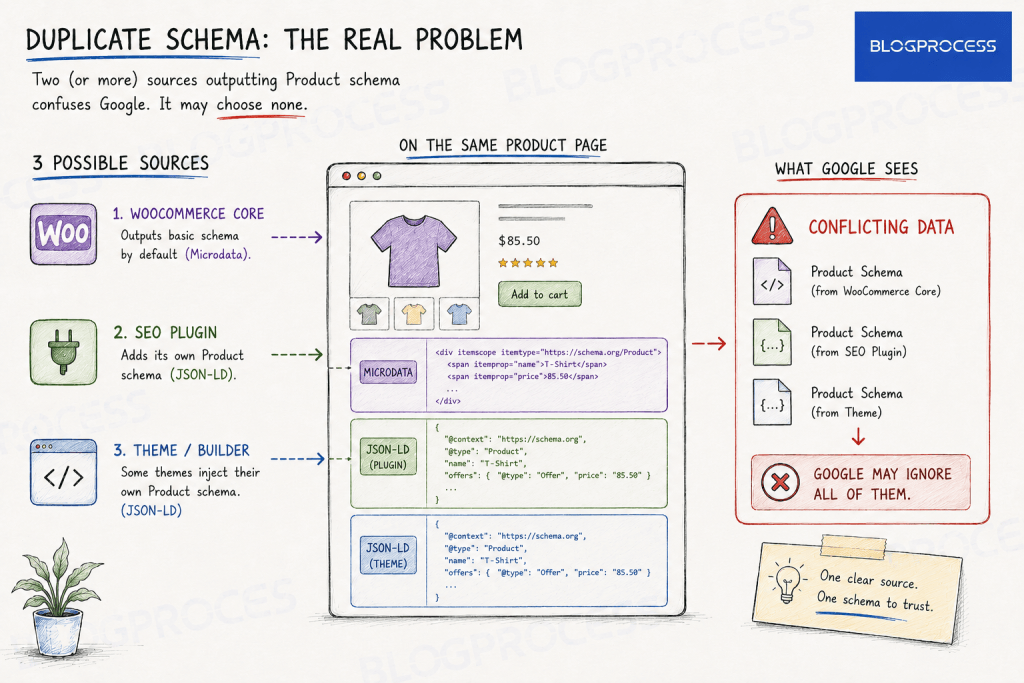
That second block came from WooCommerce core. It ships its own basic schema automatically, in the older Microdata format, sitting right alongside whatever the SEO plugin generates. Two sources, same page, same schema type. Google doesn’t merge them. It often just ignores both.
That’s the actual failure mode behind most “why isn’t my rich snippet showing” questions, and it’s rarely the one people go looking for first. I’ve since made the duplicate check the first thing I look for on any WooCommerce audit, before touching a single field, because it explains more broken rich results than every other item on this list combined.
What WooCommerce Ships by Default
Every WooCommerce product page gets basic Product schema whether you touch a setting or not. It covers name, description, image, sku, and an offers block with price, currency, and availability. Technically valid. Enough to pass a bare-minimum check.
Not enough to earn a rich result. Nowhere close. Missing from that default output: brand, review data, shipping details, and merchant return policy. Those are the fields that actually put stars and pricing under a search listing instead of a plain blue link.
There’s a format issue underneath all of this too, and it rarely gets mentioned. WooCommerce core still outputs its default schema as Microdata, attributes baked directly into the HTML tags, rather than the JSON-LD format Google has favored for years and that every major SEO plugin uses now.
Microdata still validates. It’s just the older approach, harder to maintain, and easy to break accidentally if a theme update changes the markup structure around it. If a page is relying on WooCommerce core’s default schema alone, it’s running on a format most modern tooling has quietly moved past.
The Silent Killer: Duplicate Schema From Two Sources
Here’s the check that catches it: view the page source, search for
"@type": "Product"
And count how many times it appears. Once is correct. Twice means WooCommerce core and your SEO plugin are both outputting Product schema, and Google has to guess which one to trust. Sometimes it picks neither.
This happens more often than plugin setup screens suggest it should. A theme can add a third source on top of that, especially themes built with their own WooCommerce integrations. Three sources, one page. Three competing blocks of the same schema type is not a rare configuration, it’s what a lot of stores are running without realizing it.
Which Plugin Handles This
The fix isn’t complicated once you know to look, but there’s rarely one dedicated toggle for it. Pick a source. Suppress the rest. Rank Math includes WooCommerce product schema free.
Yoast requires its separate, paid WooCommerce SEO add-on for the same output. AIOSEO handles it within its core plugin. Worth checking which tier a store is actually running before assuming product schema is covered.
Finding the Real Culprit
More often, the second source turns out to be the theme, not WooCommerce core itself, since themes like Astra, GeneratePress, and Kadence frequently inject their own schema. This is usually a symptom of the same problem covered in our plugin bloat audit, too many tools quietly doing overlapping jobs.
Disabling the Extra Source
Check the theme’s SEO or schema settings first. One toggle can end this. If it doesn’t have one, disabling that specific output usually takes a short code snippet rather than a checkbox. Whatever the source, leaving two active is the default state for a lot of installs, and it’s the single most common reason a technically-valid product page still shows zero rich results.
What a Configured SEO Plugin Actually Fixes
Once one plugin is the sole schema source, whichever one you’re running, it typically fills in the real gaps: brand, GTIN or MPN when populated on the product, and aggregateRating pulled from actual WooCommerce reviews rather than a number someone typed in manually. That last part matters everywhere. Self-assigned ratings without real reviews behind them get ignored by Google, sometimes flagged outright, regardless of which plugin generated the markup.
What most plugins don’t handle automatically, AIOSEO, Rank Math, and Yoast included: shipping details and merchant return policy. These are the fields Google increasingly expects for full Merchant Listing eligibility rather than just basic product rich results.
Those usually need manual entry on the product edit screen, or accurate data fed through your Merchant Center feed separately, the same feed accuracy problem raised in our piece on AI shopping agents and structured data.
| Field | WooCommerce Core | Configured SEO Plugin |
|---|---|---|
| Name, image, description | Yes | Yes |
| Price, currency, availability | Yes | Yes |
| Brand | No | Yes, if set on the product |
| AggregateRating | No | Yes, pulled from real reviews |
| Shipping details | No | Manual entry required |
| Merchant return policy | No | Manual entry required |
Required vs. Recommended: What Actually Blocks a Rich Result
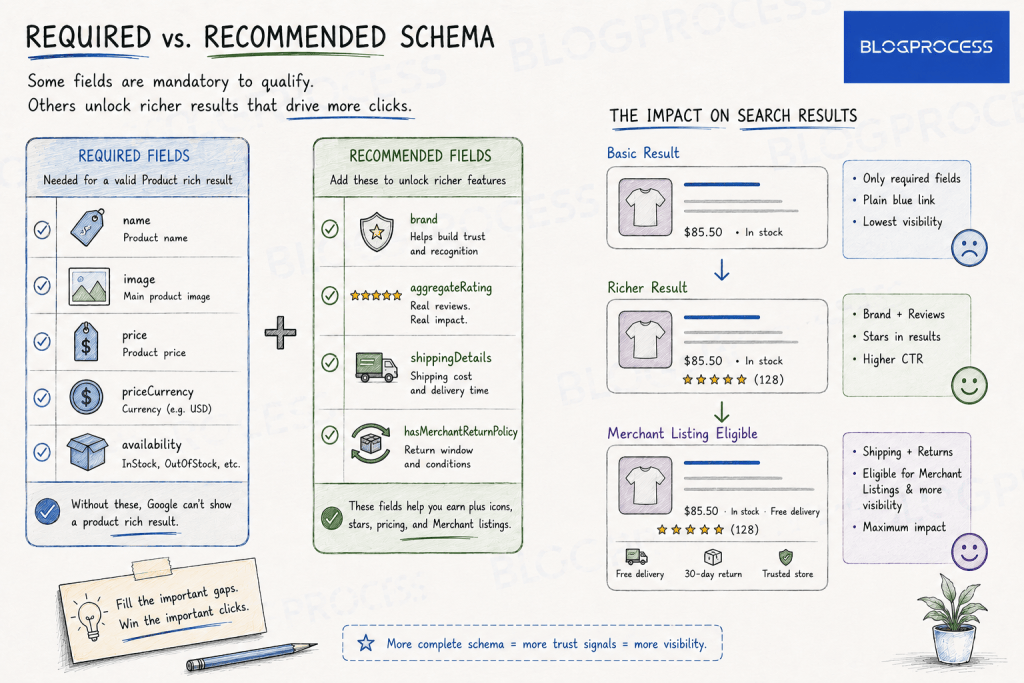
Not every missing field kills eligibility the same way. Some don’t. Some are hard requirements, skip one and the page simply doesn’t qualify. Others are recommended, meaning the page still qualifies without them, but the richer features, star ratings, shipping badges, stay locked out.
| Field | Status | What Happens If It’s Missing |
|---|---|---|
| name | Required | No rich result at all |
| image | Required | No rich result at all |
| offers (price, currency, availability) | Required | No rich result at all |
| brand | Recommended | Page still qualifies, listing looks thinner |
| aggregateRating / review | Recommended | No star rating shown, everything else unaffected |
| priceValidUntil | Recommended | Search Console warning, doesn’t block eligibility |
| shippingDetails, hasMerchantReturnPolicy | Recommended for Merchant Listing | Basic rich result still works, Shopping-tab eligibility doesn’t |
I’ve watched people spend an afternoon chasing a Search Console warning about priceValidUntil while their actual rich result was already live and working. Worth knowing which category a warning falls into before treating it as an emergency.
The Variable Product Price Problem
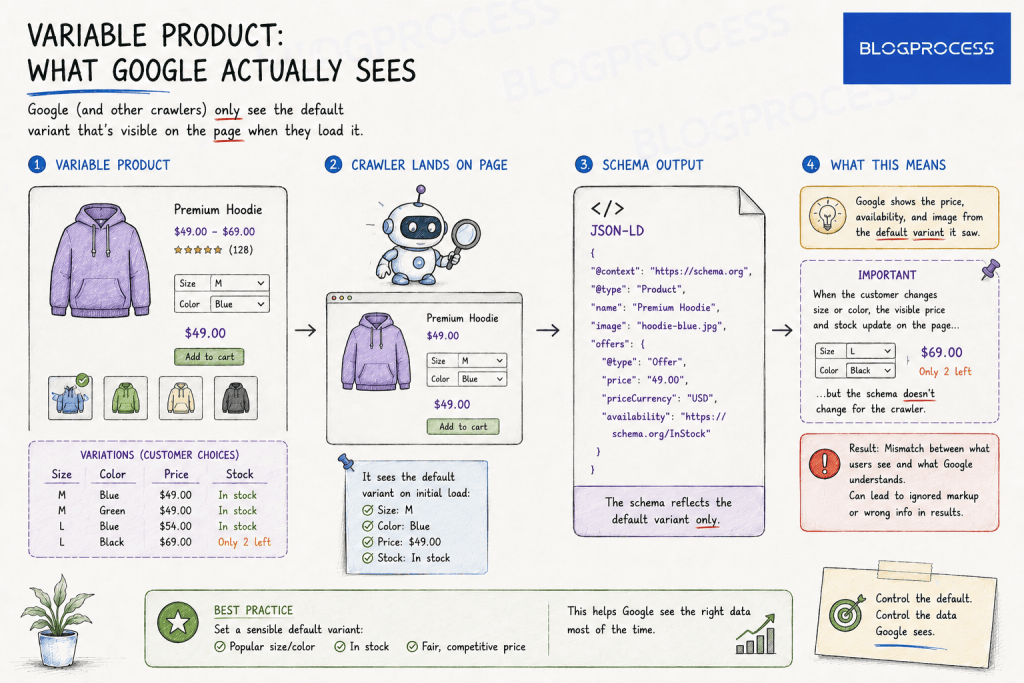
Simple products are straightforward. Variable products aren’t. A product with size and color variations has a different price per combination, and static schema can’t represent all of them at once without creating an ambiguous price range that Google often declines to show in rich results at all.
The practical fix: schema should reflect the default variant’s price and availability at page load, the one visible before a customer touches the variation selector. Google crawls that default state. As long as it’s accurate and matches what’s genuinely shown on load, the page still qualifies.
Dynamically updating the JSON-LD block as customers switch variations is possible with added JavaScript, but it’s solving a problem for logged-in shoppers, not for the crawler that decides whether you get a rich result in the first place. I’ve seen stores burn real development time building that dynamic version before confirming the static default-state approach was already enough. Check the simple fix first.
Breadcrumb Schema: The Companion Signal Nobody Sets Up
Product schema gets all the attention. Breadcrumb schema is the quieter piece that usually sits right next to it, unconfigured, on the same stores that got everything else right.
It’s not about rich results in the same way. Not directly. Breadcrumb schema tells Google the category path to a product, Home → Category → Subcategory → Product, and that path can display directly in the search snippet instead of the raw URL.
It also reinforces the same category structure a hub-and-spoke internal linking model depends on, the kind covered in our guide to fixing broken internal links: if a product’s breadcrumb schema and its actual internal link path disagree, that’s usually a sign the site’s category architecture has drifted from what’s actually linked. Most SEO plugins generate this automatically once breadcrumbs are enabled in settings. Not always. Most stores never touch that toggle.
Why FAQ Schema Won’t Save a Product Page
Worth correcting directly: FAQ schema used to trigger visible rich results widely. Google scaled that back starting in 2023, then officially retired FAQ rich results entirely on May 7, 2026, following the same path it took with HowTo results earlier. Gone, not just weaker.
If a product page has genuine FAQ content, and this site’s own content rules require exactly that, keep it. It still helps readers. And Google’s own guidance notes the underlying markup stays valid for general page understanding even without the visible SERP feature. It’s not a documented ranking or AI Overviews signal on its own.
Don’t expect it to be the thing that gets a product ranking a rich snippet. That job belongs to Product, Offer, and AggregateRating schema, not FAQ.
Reviews and Ratings: The Field Google Actually Verifies
The field that matters most on this whole list, and also the easiest to get wrong, is aggregateRating. Google checks whether the reviews backing that rating actually exist and are visible on the page. No exceptions. A number pulled from an external review platform that never displays on the WooCommerce product page itself doesn’t qualify, the rating has to be traceable to real, visible review content.
Here’s a minimal, valid example of what that block should look like once real review data is behind it, whether it’s generated through a plugin or added as manual JSON-LD:
{ "@context": "https://schema.org", "@type": "Product", "name": "Wireless Mechanical Keyboard", "image": "https://example.com/images/keyboard.jpg", "brand": { "@type": "Brand", "name": "Example Brand" }, "offers": { "@type": "Offer", "price": "89.00", "priceCurrency": "USD", "availability": "https://schema.org/InStock" }, "aggregateRating": { "@type": "AggregateRating", "ratingValue": "4.6", "reviewCount": "38" }}
That reviewCount isn’t decorative. It’s the number Google cross-checks against what’s actually rendered on the page.
Validating What’s Actually Live
Two tools, used in sequence, catch almost everything above.
- Rich Results Test confirms the markup is technically valid and tells you immediately if a required field is missing or a duplicate schema block is present
- Search Console → Enhancements shows two separate reports for this: Merchant listings, for pages where a shopper can buy directly on the site, which is what a WooCommerce product page actually is, and Product snippets, aimed more at pages describing products sold elsewhere, like reviews or aggregators. For a store, Merchant listings is the one that matters. Both draw from the same underlying schema, so check both if either shows unexpected gaps.
The gap between those two matters. A page can pass the Rich Results Test in isolation and still show zero coverage in the Merchant listings report sitewide two weeks later. Trust breaks there.
Usually because the duplicate-schema problem is happening on other product pages using the same theme template, not the one page that got manually checked. I check three product pages minimum before calling a schema audit finished, one bestseller, one variable product, one recent addition, since template inconsistencies tend to show up on exactly one of those and never the others.
A Real Audit, Start to Finish
Here’s the actual sequence I run on a product page, in order, using a single simple product as the example.
1. Open the product page and run it through Google’s Rich Results Test. Paste the live URL, not a staging link. Note every warning and error listed, not just whether it says “eligible.”
2. View the page source and search for "@type": "Product". One instance is correct. More than one means a duplicate source is active. If there’s a duplicate, stop here and resolve it before checking anything else, every field check after this point is unreliable until only one schema block remains.
3. Confirm the single source is JSON-LD, not Microdata. Search the page source for application/ld+json. If nothing comes back and the schema is instead scattered across itemprop attributes in the HTML, that’s WooCommerce core’s default output still active alone, meaning no SEO plugin schema is actually running on this page.
4. Check the three required fields are present and accurate: name, image, and the offers block with price, currency, and availability. Compare the price shown in schema against the price actually displayed on the page. Even a small mismatch counts. A stale cache or a sale that ended can leave these mismatched even when the schema itself validates.
5. Check brand. If it’s missing, that’s usually because the Brand attribute or taxonomy wasn’t set on the product itself, not a plugin failure. Add it at the product level and the schema field typically populates on its own.
6. Check aggregateRating against the visible reviews on the page. Scroll down, count the actual displayed reviews, and compare that count to the reviewCount in the schema. A mismatch here is the fastest way to get flagged, not just ignored.
7. Check breadcrumb schema separately. Search page source for "@type": "BreadcrumbList". If it’s missing, check whether breadcrumbs are enabled in the SEO plugin’s settings at all, this is the toggle most stores skip entirely.
8. Re-run the Rich Results Test after any fix. Confirm the warnings from step 1 are actually gone, not just that new fields were added elsewhere.
9. Wait, then check the Merchant listings report in Search Console two weeks later. This is the step that catches template-wide problems the single-page test can’t. If the one page checked by hand looks perfect but the sitewide report still shows zero or low coverage, the issue is happening on other product pages using the same template, go back to step 2 and check a second and third product page.
That’s the whole audit. Steps 1 through 8 take about fifteen minutes once the pattern is familiar. Step 9 is the one people skip, and it’s the one that actually confirms the fix held.
Keeping Schema Data Accurate as Inventory Changes
Static schema goes stale the moment stock or price changes and nothing refreshes it. That gap adds up fast.
If product updated webhooks are already wired up for inventory sync, that same event is worth watching for schema accuracy too, since a page showing “in stock” schema for a product that sold out an hour ago is exactly the kind of mismatch Google’s guidelines call out directly. Schema has to match what’s genuinely on the page, not what was true when it was last generated.
Questions People Ask About WooCommerce Product Schema
Does WooCommerce add product schema automatically?
Yes, but only the basics: name, description, image, sku, and an offers block. It’s in the older Microdata format and doesn’t include brand, reviews, shipping, or return policy data, the fields that actually earn rich results.
Why do I have duplicate product schema on my site?
Usually because WooCommerce core, your SEO plugin, and sometimes the theme are all outputting Product schema on the same page. Check for it directly. View the page source and search for "@type": "Product" to check. More than one instance means a source needs to be disabled, often the theme rather than WooCommerce itself.
Can I manually type in a star rating for my product?
No. Google requires aggregateRating to be backed by real, visible reviews on the page. Self-assigned ratings without matching review content get ignored or flagged in Search Console.
Does FAQ schema help my product page rank?
Not for rich results specifically. Google scaled FAQ rich results back starting in 2023, then officially retired them entirely on May 7, 2026. The FAQPage markup itself is still valid and can stay on a page without issue, it’s just not tied to a documented ranking or AI Overviews signal, and it no longer drives a visible rich snippet.
How long does it take for rich results to appear after adding schema?
Typically a few days to a few weeks, depending on how often Google recrawls the page. Established, frequently-crawled sites tend to see it faster than new domains.
What’s the difference between basic product rich results and Merchant Listing eligibility?
Basic rich results need name, image, price, availability, and aggregateRating if claiming reviews. Merchant Listing eligibility, the kind tied to Google Shopping, additionally expects shipping details and a merchant return policy, fields WooCommerce and most SEO plugins don’t add automatically.
Conclusion
Start with the duplicate-schema check, view source, search for "@type": "Product", count the instances. Five minutes, tops. That single audit fixes more broken rich results than any field you could add. Once one clean source is confirmed, fill in brand and let real reviews populate aggregateRating, then validate with the Rich Results Test and check Search Console’s Merchant listings report two weeks later to confirm it held across the whole catalog, not just the one page checked by hand.