

Every broken link checker plugin does the same thing under the hood. It crawls your rendered pages and flags the dead ones.
That works fine until you’re managing a staging site with no public frontend, a client site where you can’t justify installing one more plugin, or a database with fifteen thousand posts where a full crawl eats server resources for an hour.
By the end of this guide you can find every broken internal link in WordPress directly in the database, with one query, in under a minute.
Why WordPress Plugin Link Scanners Miss What SQL Catches Instantly
Link checker plugins render your pages and click through them, simulating a visitor. That’s accurate, but slow, and it requires the site to be reachable over HTTP.
On a staging environment behind a password wall, or a local dev copy, most scanners simply can’t run.
There’s a second issue. Every internal link on your site already sits in plain text inside your database, in the post_content field of the wp_posts table.
A plugin has to fetch your site’s pages externally, the way an outside visitor would, then reconstruct the link structure from what it sees rendered. SQL just reads it directly.
Agencies auditing multiple client sites tend to hit this wall fast, since spinning up a plugin on every staging environment they touch isn’t realistic.
| Aspect | SQL method | Plugin method |
|---|---|---|
| Setup time | None, if you have database access | Install, activate, configure a crawl |
| Works on staging or local | Yes | Usually no, needs a reachable frontend |
| Site load during scan | Zero | Can spike CPU on large sites |
| Bulk fix capability | Yes, one UPDATE query | Usually manual, link by link |
| Skill required | Basic SQL | None |
| Catches Navigation and Reusable block links | Only with a separate query, see below | Usually yes, since it reads the rendered page |
Neither method wins outright. The plugin route is what most WordPress users should try first, and our full walkthrough of the plugin-based approach covers that end to end.
This guide is for the cases where a plugin isn’t an option, or where SQL is already faster for you than a settings screen.
There’s also a case for skipping the plugin on principle. Sites that accumulate one narrow-purpose plugin after another tend to show the same pattern: slower dashboards, more update conflicts, more surface area for something to break. A closer look at that bloat problem is worth reading if a one-time SQL query sounds better than a permanent new plugin.
Where WordPress Stores Internal Links in the Database
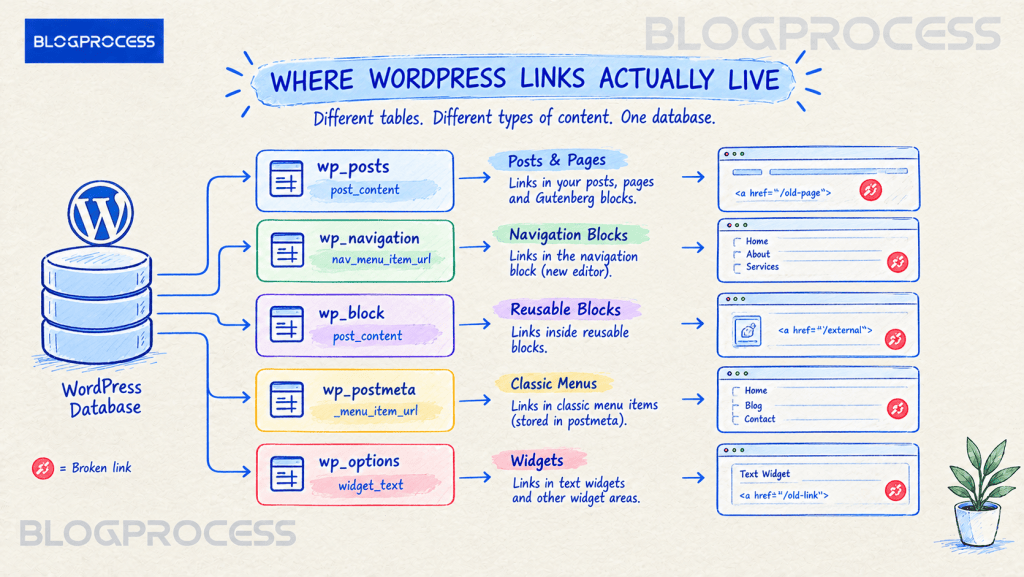
Every post and page lives in wp_posts, in a column called post_content. That column holds the raw HTML and Gutenberg block markup exactly as saved, including every <a href="..."> tag your editors have ever written.
A few things worth checking before you touch the database:
- Your table prefix might not be
wp_. Hosts that harden installs often randomize it, so confirm the real prefix inwp-config.phpfirst. post_contentusually stores full URLs, not relative paths, so a slug fragment search works better than a full-domain search.- Classic menu items live in
nav_menu_item, and Navigation blocks live inwp_navigation. Neither is stored inpost_content. - Reusable blocks are their own post type too,
wp_block, stored separately from the pages that use them.
The Read-Only SQL Query to Find Broken Internal Links
Start here. This query never modifies anything.
SELECT ID, post_title, post_statusFROM wp_postsWHERE post_content LIKE '%old-page-slug%' AND post_status = 'publish';
Swap old-page-slug for the fragment that identifies the broken destination.
- Search for a slug fragment, not the full URL. HTTP versus HTTPS and www versus non-www can silently break a full-string match.
- Keep the
%wildcard on both sides. Without it, you’re asking for an exact match, which almost never exists. - Filter on
post_status = 'publish'first. Drafts and trashed posts clutter results with links nobody’s actually seeing. - Run it against a staging copy first if you’re unsure of the syntax. Costs nothing, keeps a typo from hitting production.
Anything that comes back is a post worth checking.
Finding WordPress Slugs Broken by a Migration or Redesign
Migrations are the number one cause of broken internal links, and the hardest to catch, since the old slug no longer exists anywhere on the live site.
Sites that skip redirect mapping during a host switch tend to end up with more orphaned internal links afterward. If you’ve migrated a site between hosts before, this pattern will look familiar.
Pull your current slugs first:
SELECT ID, post_nameFROM wp_postsWHERE post_status = 'publish' AND post_type = 'post';
Compare that list against your old sitemap, a Wayback Machine snapshot, or a pre-migration export. Any old slug missing from this list is a candidate, and you run it through the read-only query above to find where it’s still referenced.
The Wayback Machine’s CDX API is the fastest free way to pull a historical slug list if nothing was saved before a migration.
Running the WordPress SQL Query in phpMyAdmin
This method needs direct database access, which not every host grants. Fully managed hosting platforms often restrict or block phpMyAdmin entirely, reserving it for higher-tier plans or leaving it out altogether. Check your host’s dashboard or plan details first. If direct access isn’t available, the plugin-based approach linked above is the fallback.
- Log into your hosting control panel and open phpMyAdmin, usually under “Databases” or “Advanced.”
- Select your WordPress database from the sidebar. Confirm the database name against
wp-config.phpfirst if you manage multiple sites on one host. - Click the SQL tab.
- Paste the read-only query with your slug fragment swapped in.
- Click Go.
- Review the results. Each row is a post ID, title, and status where the old link still lives.
- Export as CSV using the Export link above the results if you’re handing the list off to someone else.
No plugin install. No crawl. No wait.
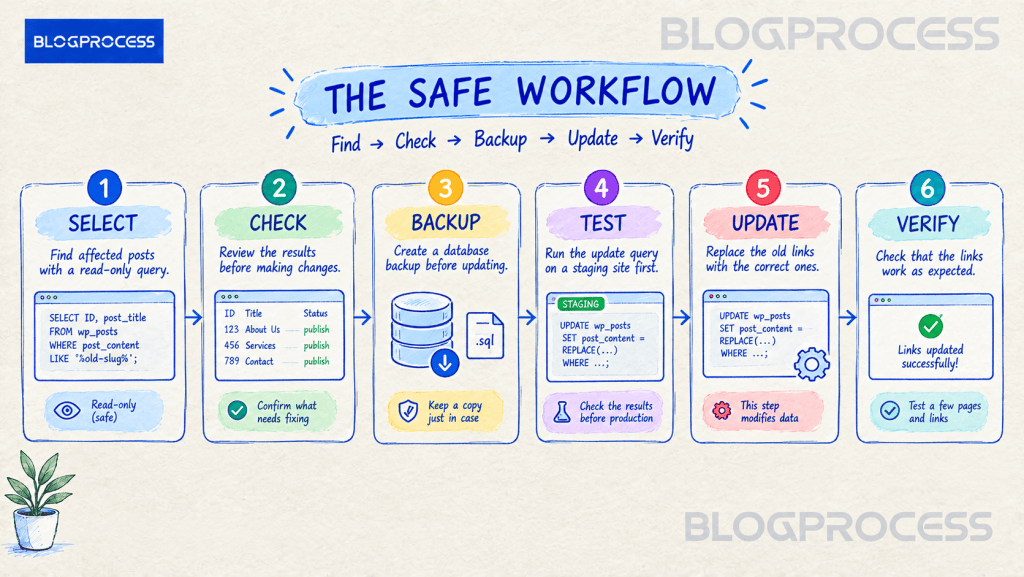
The WordPress SQL Update Query for Fixing Broken Links in Bulk
Once you know which posts are affected, fix all of them in one move.
UPDATE wp_postsSET post_content = REPLACE(post_content, 'old-url-or-slug', 'new-url-or-slug')WHERE post_content LIKE '%old-url-or-slug%' AND post_status = 'publish';
Do not run this without a backup. A misplaced character in a REPLACE statement can corrupt content site-wide in one execution. There’s no undo in phpMyAdmin.
Backup Checklist Before Running the Broken Link Update
- Export a full database backup through your host’s snapshot tool or a manual
mysqldump. - Run the matching
SELECT COUNT(*)query first, so you know how many rows will change before committing. - Test the same REPLACE query against a staging copy if one exists, and confirm the output before touching production.
- Keep the backup for at least a week after the change, not just until you’ve eyeballed a couple of posts.
Once the backup exists and the count matches expectations, run the UPDATE. It executes in seconds, even across thousands of rows.
What a Raw SQL Broken Link Search Will Miss
A clean query result feels like a complete audit. It usually isn’t.
Navigation and Reusable Blocks Store Links Separately
Navigation blocks store menu links in the wp_navigation post type, not in the page content that displays them. Reusable blocks live under post_type = 'wp_block', so a broken link inside one won’t surface in a regular post and page search, even though the block renders on every page that uses it.
Classic Navigation Menus Store Links in Post Meta, Not Post Content
If your theme still uses the classic Menus screen instead of block-based Navigation, each menu item is its own post under post_type = 'nav_menu_item', but the actual URL for a custom link lives in wp_postmeta, under the _menu_item_url key. None of the queries above touch that table, so a broken menu link hides from every search covered so far.
SELECT post_id, meta_valueFROM wp_postmetaWHERE meta_key = '_menu_item_url' AND meta_value LIKE '%old-page-slug%';
WordPress Widgets and Page Builders Need Their Own Broken Link Query
Classic widgets and Customizer settings store link data in wp_options, under keys like widget_text, which a post_content search never touches.
That data is serialized, with the string length baked into the format. Never run a plain REPLACE on wp_options. Changing a string’s length without updating its length prefix breaks PHP’s ability to unserialize it, and the widget disappears. Fixing a link here means unserializing the value, editing it in code, then re-serializing it, not a direct SQL swap.
Shortcode-based page builders carry the same risk. They often encode URLs inside serialized PHP arrays too, which breaks a simple LIKE match and needs a builder-specific, serialization-aware query.
| Task | Where to look | Approach |
|---|---|---|
| Links in regular posts and pages | wp_posts.post_content | LIKE search, covered above |
| Links in Navigation blocks | wp_posts where post_type = 'wp_navigation' | Same LIKE pattern, different post type filter |
| Links in Reusable blocks | wp_posts where post_type = 'wp_block' | Same LIKE pattern, different post type filter |
| Links in classic nav menus | wp_postmeta, key _menu_item_url | Separate query against postmeta, not post_content |
| Links in classic widgets | wp_options, keys like widget_text | Requires unserializing the option value |

When a WordPress Broken Link Plugin Beats SQL
If a site runs heavily on page builders with shortcode syntax, or if you’re not confident reading raw SQL results, a plugin scan is the more reliable choice, since it reads the rendered page instead of guessing where links live.
Our full breakdown of the plugin approach walks through picking one and running a first scan. Plenty of site owners run the SQL check quarterly and lean on a plugin for ongoing monitoring in between.
Questions People Ask About Fixing Broken Internal Links With SQL
Is it safe to run SQL queries directly on a live WordPress database? Read-only SELECT queries change nothing and are safe. UPDATE queries carry real risk and should only run after a full backup and a staging test, if one is available.
Do I need coding experience to use this method? Basic SQL syntax is enough. No PHP knowledge is required beyond the table structure covered here.
What’s my table prefix if it’s not wp_?
Check the $table_prefix variable near the top of wp-config.php. Hosts that auto-harden installs often randomize this value.
Will this method catch broken links inside Elementor or Divi content? Partially. Basic href attributes usually match a LIKE search, but builder-specific data stored as serialized arrays needs a separate, builder-specific query.
How often should I run a WordPress broken link audit? Quarterly is a reasonable baseline, with an extra pass immediately after any migration, redesign, or bulk slug change.
Can I undo a bulk UPDATE query if something goes wrong? Only by restoring from a backup. There’s no built-in undo for a database UPDATE, which is why the backup step above isn’t optional.
Conclusion
A plugin scan is the right call for most people, most of the time. But on a staging site with no frontend to crawl, or a client database where every extra plugin is one more thing to maintain, the SQL route gets the same answer faster and with zero load on the site.
Start with the read-only query, review what comes back, and only run the UPDATE once a backup is sitting safely off to the side.