

There is a point in every self-hosted WordPress journey when managing the server starts taking more time than running the actual site. Login attacks hitting wp-login.php around the clock. Resource usage warnings from the hosting provider. Cron jobs misfiring and stacking 503 errors. At that point, the technical overhead is no longer a feature. It is a liability.
After many months of headache I moved my main blog to WordPress.com to avoid waisting my time on shared hosting none-sense, and I wanted to share the full migration process from ScalaHosting (shared hosting, SPanel) to WordPress.com with everyone who is stuck like me. Every step below is based on what actually happens when you do this, not what the documentation implies. If you’re still deciding where to land, I’ve also compared WordPress.com against Rocket.net head-to-head using the same theme and plugin stack on both, and if you want the wider field before narrowing down, our roundup lets you compare hosting providers side by side.
Why not use WordPress.com’s built-in Jetpack importer?
WordPress.com offers a direct import option that connects to your self-hosted site remotely and pulls content over automatically. It looks like the easiest path on paper. The problem is what it needs to make that connection work.
The remote connection relies on XML-RPC to communicate with the self-hosted site. If you are like me and faced problems with ScalaHosting, this will mean XML-RPC was completely disabled at the server level to block xmlrpc.php exploit attempts and brute-force probes. With XML-RPC off, WordPress.com cannot establish the connection and the import fails before it starts. Cloudflare’s WAF rules on top of that block the incoming requests from WordPress.com’s servers as suspicious traffic, which makes the situation worse.
The manual XML export route in this guide sidesteps all of that. The export runs locally inside the WordPress admin, requires no external connection, and produces a clean file that imports without any dependency on XML-RPC or server accessibility.
Before You Touch Anything: Understand What Moves and What Does Not
Migration here is not a simple file transfer. Because WordPress.com is a managed platform, you are trading server control for operational simplicity. Specifically:
- Content transfers fully: posts, pages, categories, tags, and comments via XML export
- Media transfers partially: the importer fetches images from live URLs, but gaps are common
- Theme settings do not transfer: customizer configurations, widgets, and menus need manual rebuilding
- Server-level rules are gone: no .htaccess, no custom cron jobs, no IP blocking at server level
Affiliate Disclosure: This article contains affiliate links. If you click through and purchase a WordPress.com plan, a commission is earned at no extra cost to you. The steps, observations, and recommendations in this guide are based on direct experience with the migration process and are not influenced by the affiliate relationship.
Plan selection changed significantly in April 2026. WordPress.com now allows plugins and themes on all paid plans, including the Personal plan at $4/month (billed annually).
Previously, plugin access required the Business tier. The current plan structure matters for what you choose at setup.
| Plan | Monthly | Monthly (annual billing) | Plugins | Storage |
|---|---|---|---|---|
| Personal | $9 | $4 | Yes (since April 2026) | 6 GB |
| Premium | $18 | $8 | Yes | 13 GB |
| Business | $40 | $25 | Yes | 50 GB |
| Commerce | $70 | $45 | Yes | 50 GB |
Ready to pick your plan? Start your WordPress.com site here and get your first year’s domain free with any paid plan.
Step 1: Lock Down a Full Backup on ScalaHosting
The first rule of any migration is never start without a working backup. Even if the move goes perfectly, you want a restore point.
Export the database via SPanel:
Log into SPanel, navigate to MySQL Databases.
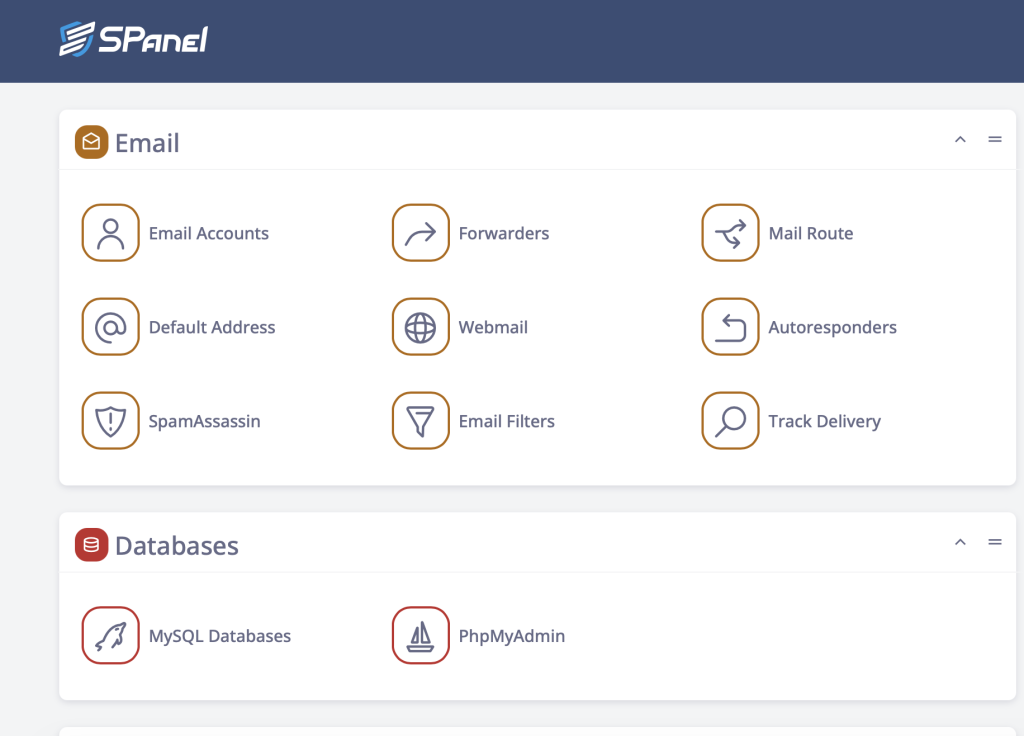
Click the Actions button next to you database, and open phpMyAdmin.
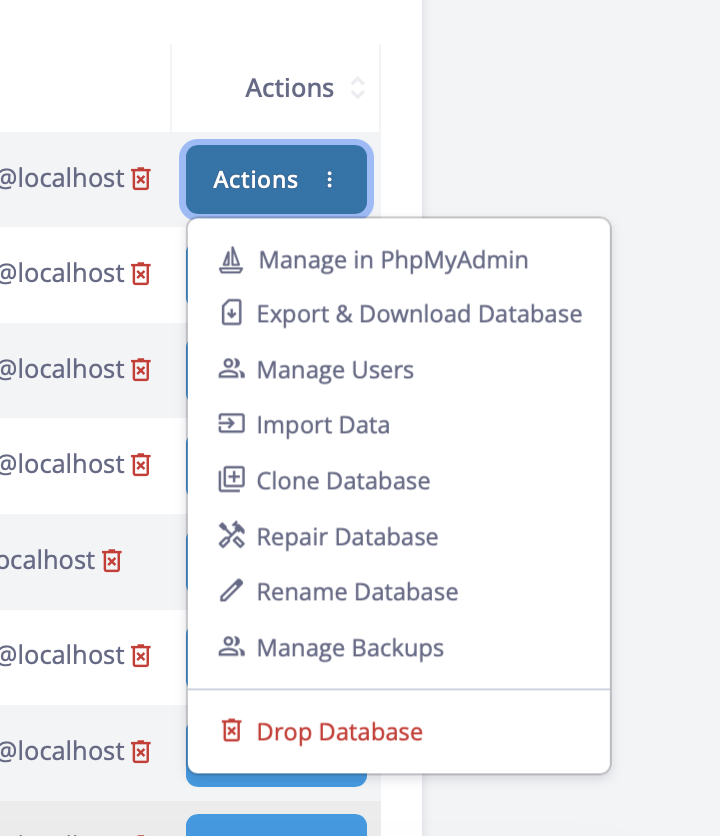
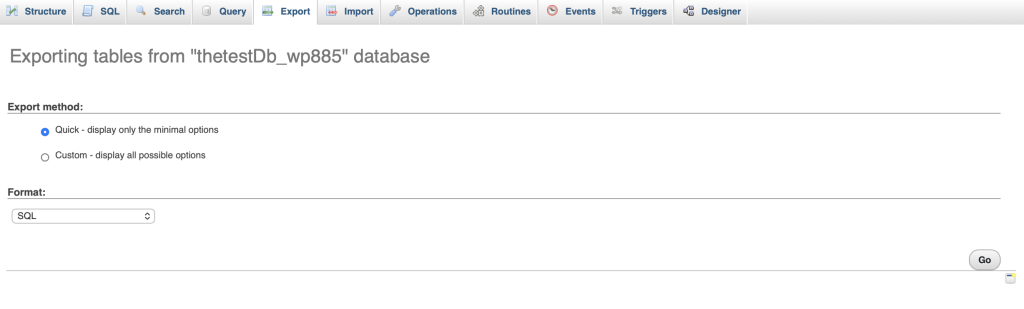
From there, select the Export tab, choose Quick export, format set to SQL, and click Go. The .sql file downloads immediately.
Download the WordPress file directory:
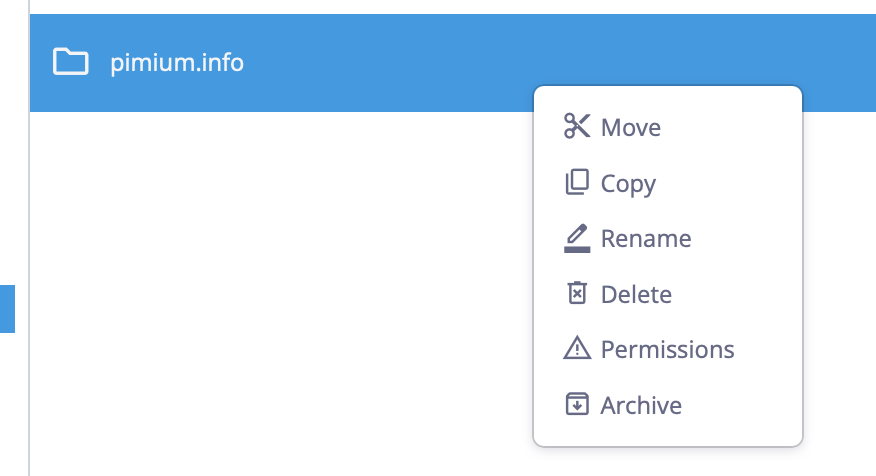
In SPanel File Manager, navigate to your WordPress root (usually public_html/ or a custom subdirectory). Select all files or choose the parent directory of the website, right-click, and choose Archive to ZIP everything, then download. For larger installs, SFTP via FileZilla is more reliable than the browser-based manager.
Step 2: Export Content from WordPress Admin
The file-level backup above is just a safety net. What actually moves to WordPress.com is the WXR export file the CMS generates natively.
Inside your current WordPress admin, go to Tools, then Export. Select All content and click Download Export File.
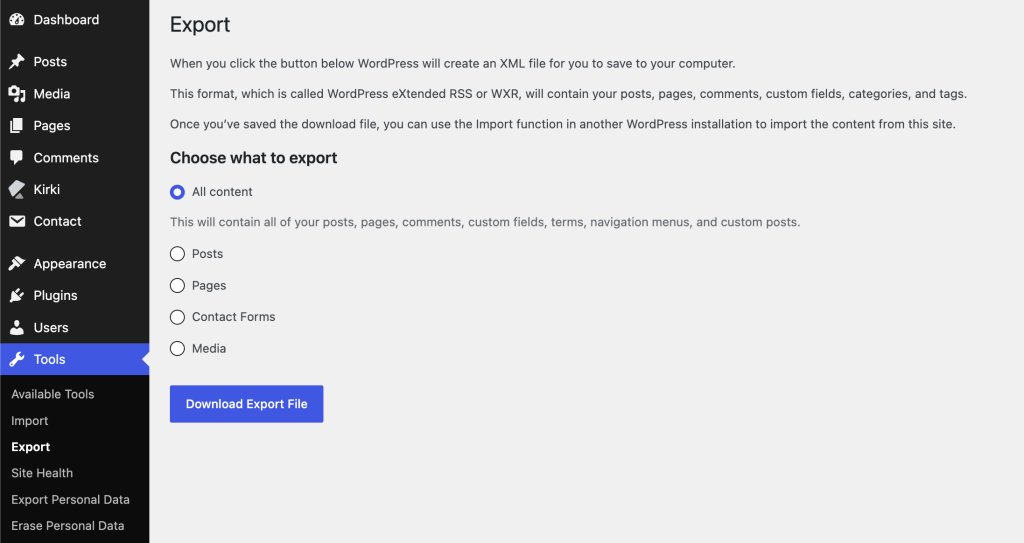
The resulting .xml file contains posts, pages, categories, tags, and comments. It does not include actual media files. Those are referenced by URL and need to be fetched separately, which the importer will attempt automatically.
Step 3: Set Up the WordPress.com Destination Site
Go to wordpress.com, create an account, and start a new site. During setup, either use a free .wordpress.com subdomain as a staging space or connect your actual domain (pimium.info in this case) later.
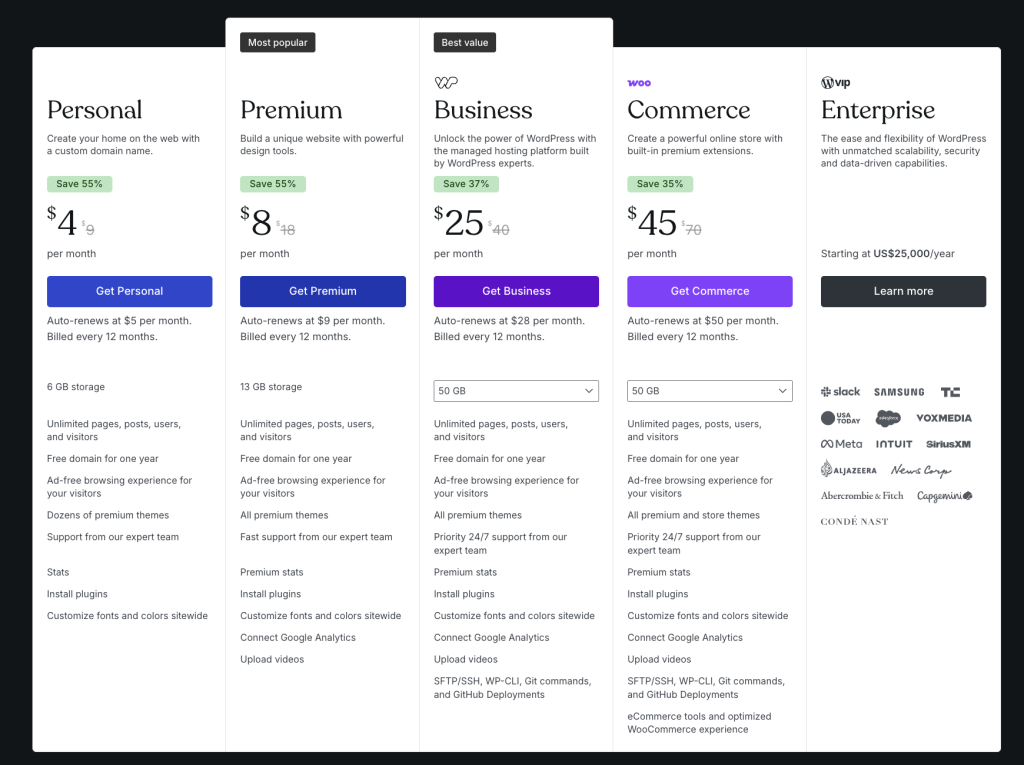
Because plugins are now available across all paid plans as of April 2026, the Personal plan is sufficient for a basic blog migration. For sites that need significant storage or premium plugin stacks, Business remains the logical tier.
Once the site is active, you land in the WordPress.com admin interface. It mirrors the standard WordPress backend closely enough that nothing there should slow you down.
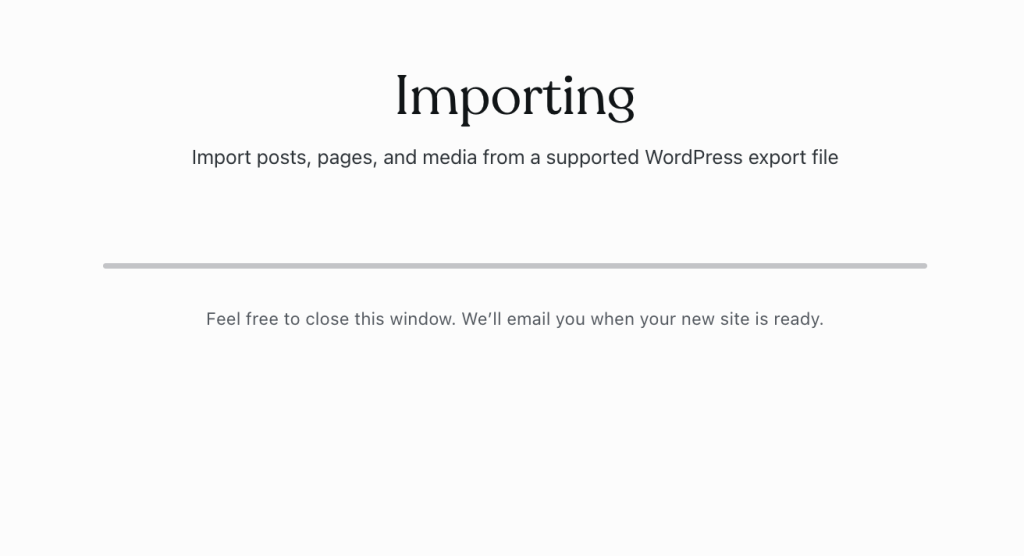
Step 4: Run the Content Import
Inside the WordPress.com admin, navigate to Tools, then Import. Click the WordPress option to trigger the importer.
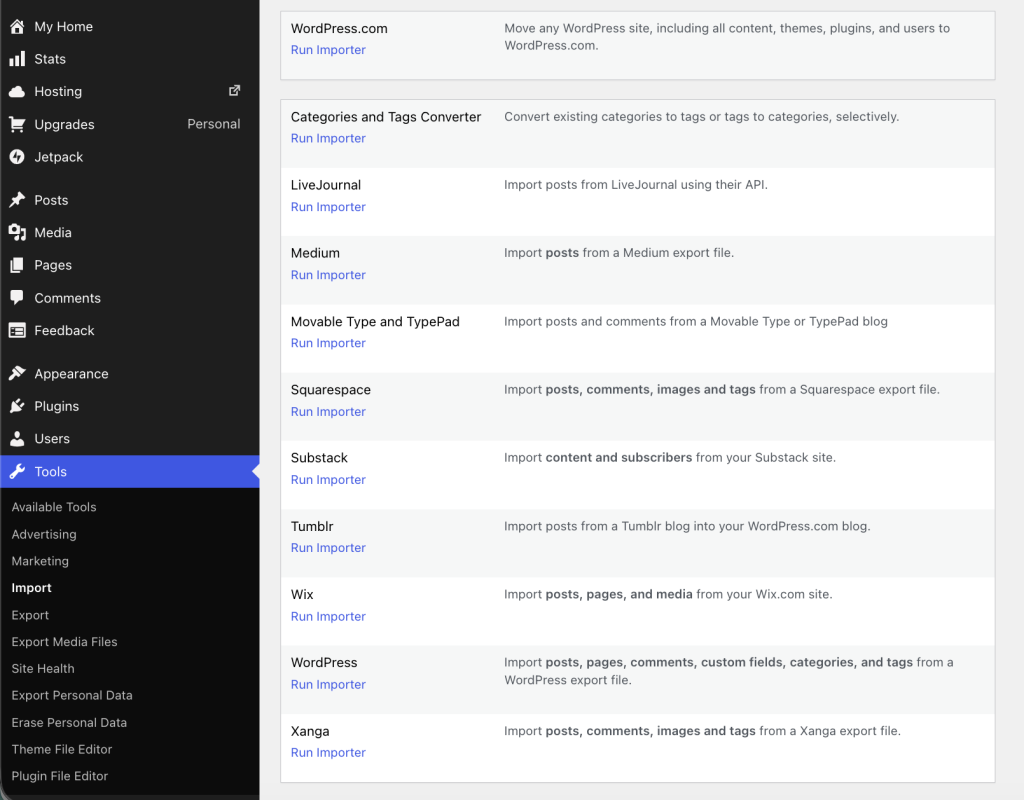
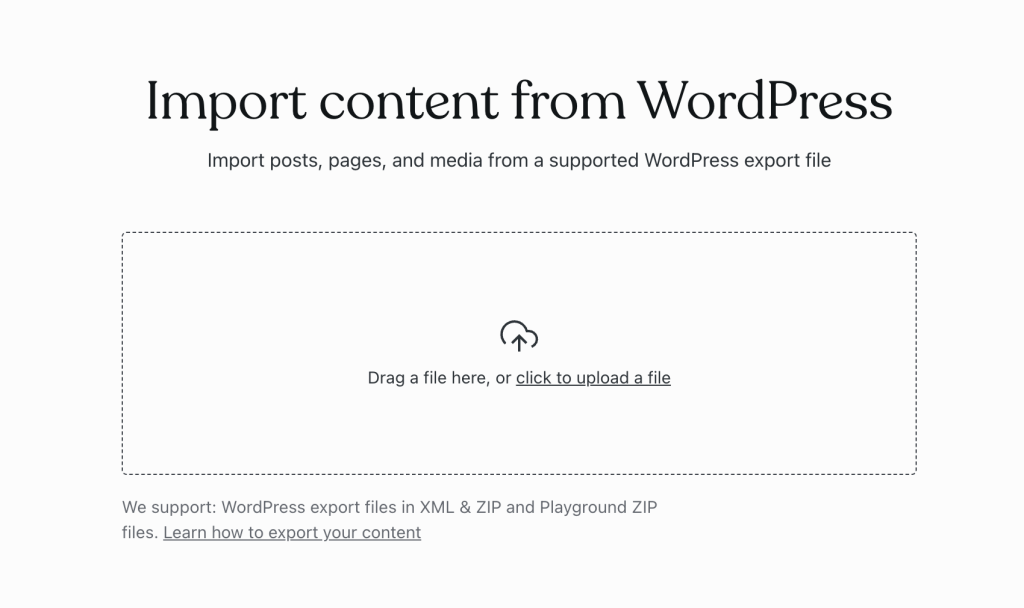
Upload the .xml file exported in Step 2.
The importer then asks about author assignment.
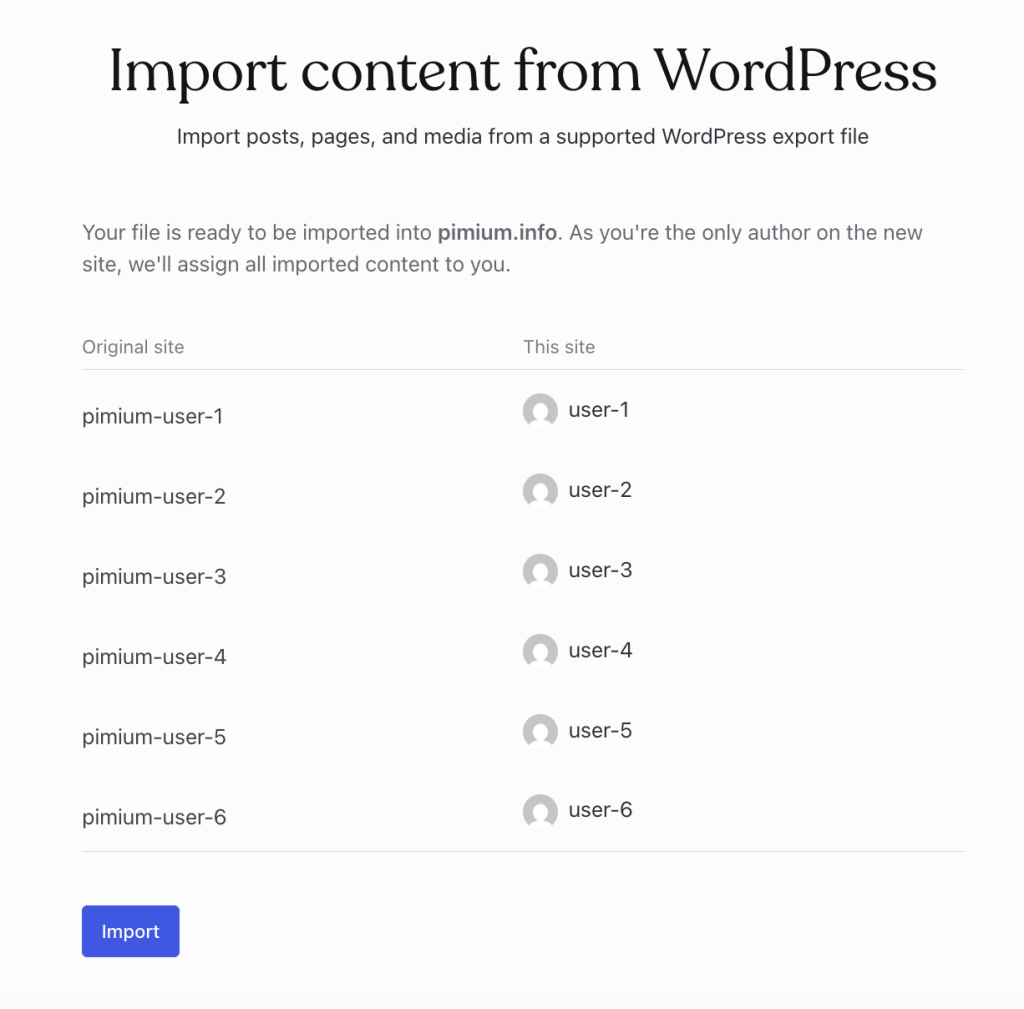
Import time depends on site size. A small blog finishes in under five minutes. A site with years of content and hundreds of images can take considerably longer.
Step 5: Recover the Media Gaps
The importer fetches media from live URLs on your old site. However, if your ScalaHosting site runs behind Cloudflare with security rules active, some images will fail. The import bot gets blocked or challenged.
Before re-running or supplementing the import, temporarily set Cloudflare security level to “Essentially Off” on the old site. After import finishes, restore it.
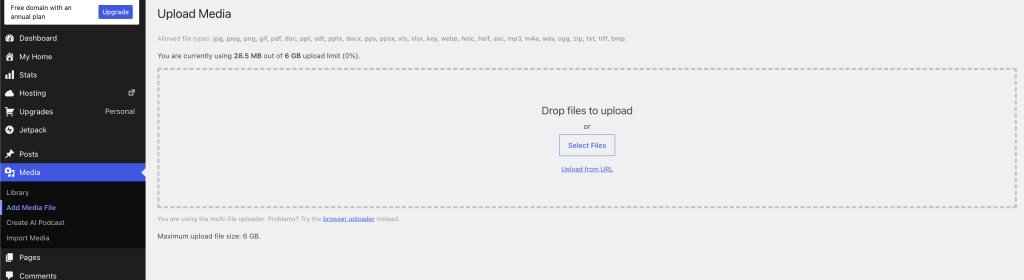
For any media that still did not come through, download the uploads folder directly from ScalaHosting.
Then upload missing files manually via Media > Add New in WordPress.com, or batch-upload using a plugin.
Step 6: Rebuild the Theme
The XML import carries content, not visual configuration. The theme from ScalaHosting does not replicate on WordPress.com regardless of plan. Two paths forward:
Option A: Reinstall the same theme
If the theme exists in the WordPress.com theme directory, install it fresh under Appearance > Themes. Reconfigure Customizer settings manually afterward.
Option B: Switch to a different theme
A migration is genuinely the right moment to make a theme change if the current one has been a performance or maintenance issue. Themes like Astra, Kadence, and GeneratePress are well-supported on WordPress.com and significantly lighter than most premium magazine themes.
Step 7: Fix Permalinks and Rebuild Navigation
Content imports cleanly, but structural elements do not.
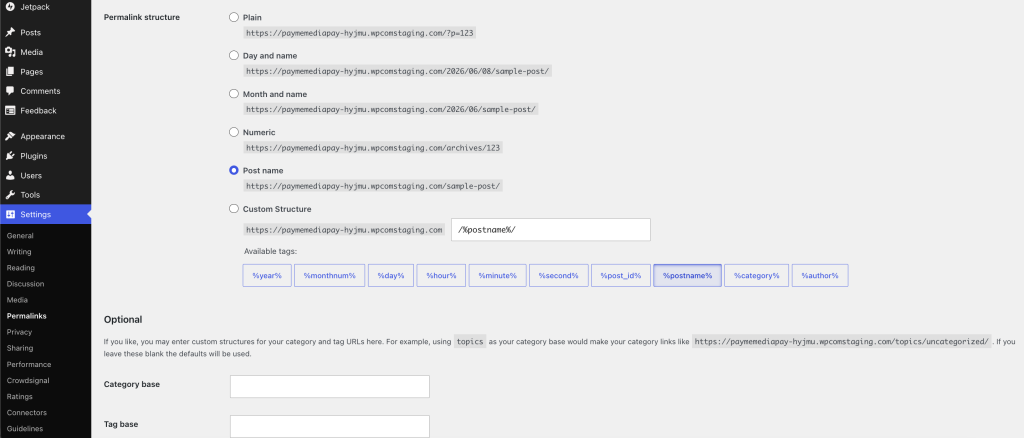
First, go to Settings > Permalinks in the WordPress.com admin (Make sure the Developer feature is activated in your account) and match the structure from the original ScalaHosting install. If the old site used /%postname%/, replicate that exactly.
Then rebuild navigation menus under Appearance > Menus. These do not import from the XML file and need to be reconstructed manually by adding pages and posts back into the menu structure. This is also the point to sweep for broken internal links left over from the old permalink structure; this guide walks through finding and fixing them before they pile up.
Also review:
- Widgets and sidebar configurations
- Homepage display settings (static page vs. latest posts)
- Category and tag archive pages
Step 8: Point the Domain to WordPress.com
Connecting pimium.info to WordPress.com means updating DNS.
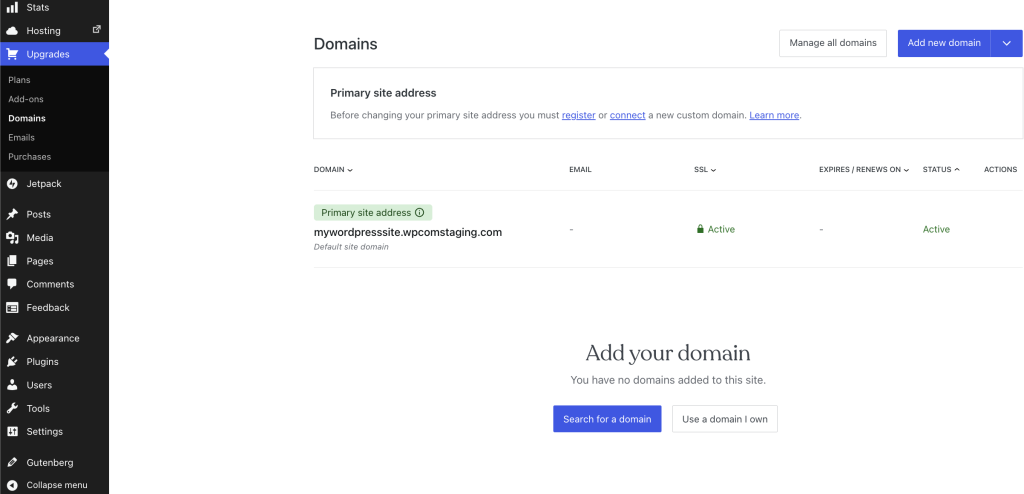
Inside WordPress.com, go to Upgrades > Domains, click “Add a domain I own,” and enter the domain.
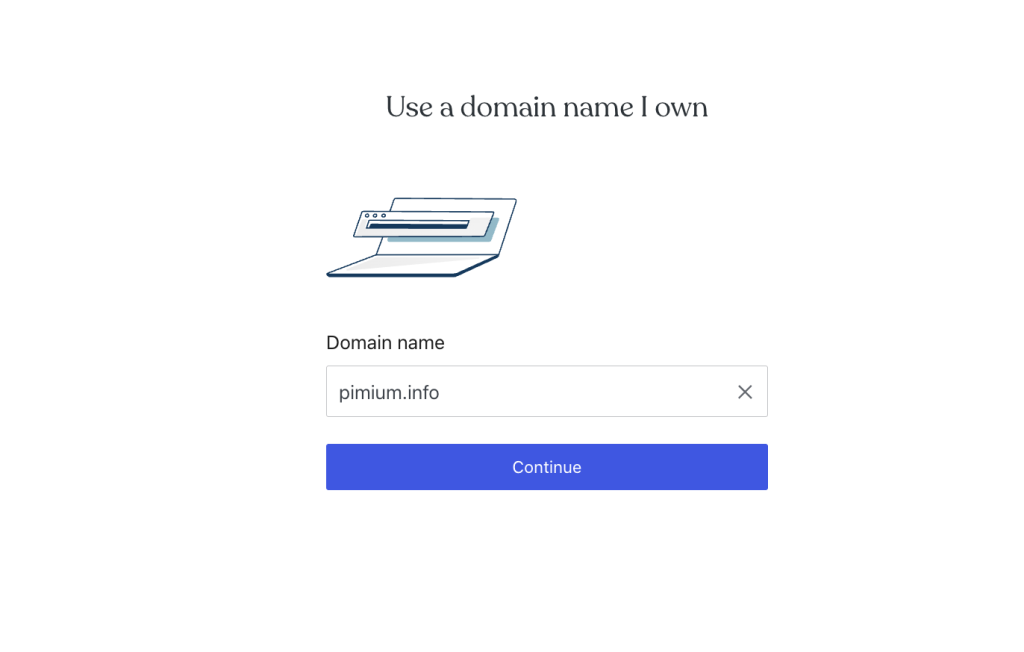
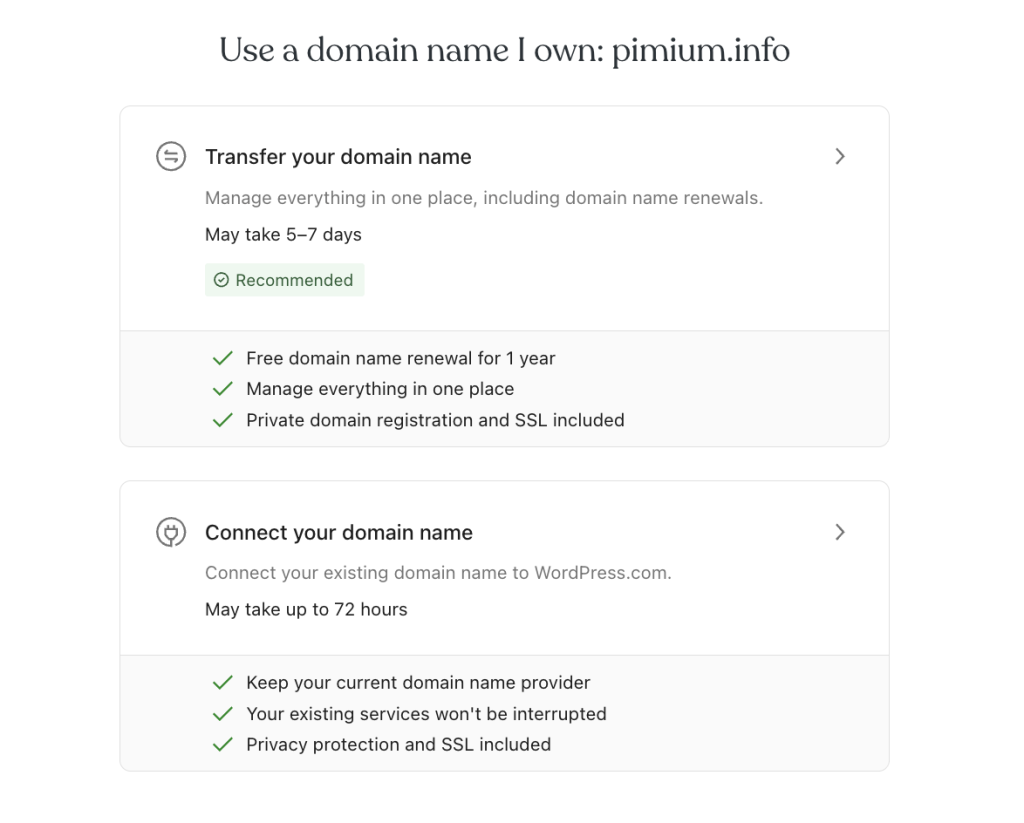
When you add your domain inside WordPress.com, the platform gives you two options: transfer the domain directly to WordPress.com, or simply connect it while keeping it registered where it currently is. For most setups, connecting is the faster path and avoids any registrar transfer delays.
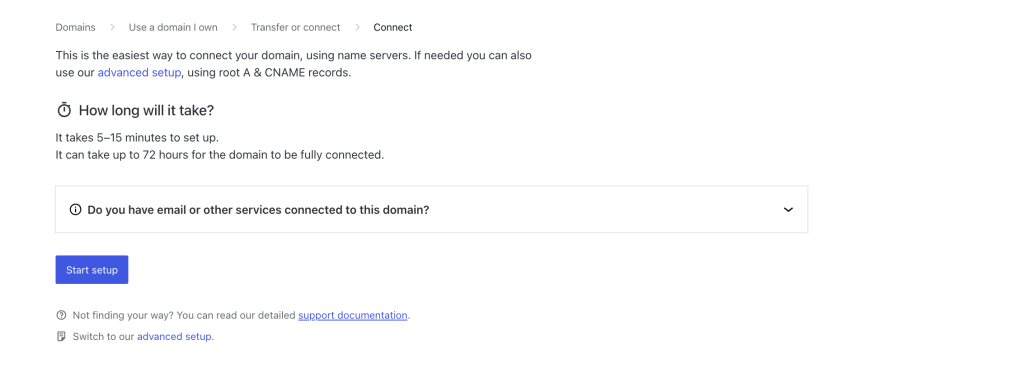
If you choose to connect, WordPress.com then asks how you want to point the domain. Two options again: update the nameservers to point fully to WordPress.com, or keep your current nameservers and update individual DNS records manually.
WordPress.com provides all the needed records. Visit your Domain DNS manager and update to the right info.
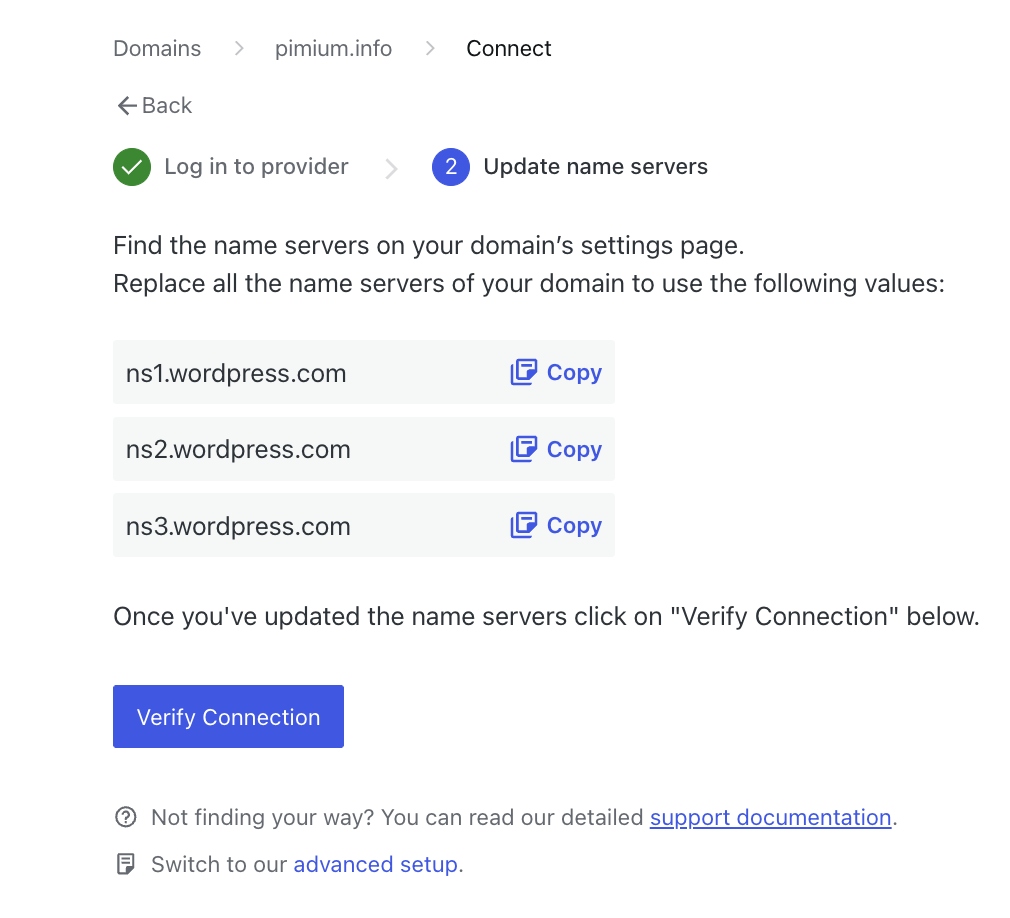
When your name servers are updated click on “Verify Connection“.
Step 9: Verify Before Removing the Old Site
Run through this checklist before cancelling the ScalaHosting plan:
- Homepage renders correctly
- Post and page URLs resolve without errors
- Images display on published posts (no broken image icons)
- HTTPS active (WordPress.com provisions SSL automatically)
- Navigation menus are intact
- Contact forms working and sending correctly
- Mobile layout looks correct
Step 10: Wind Down ScalaHosting
Keep the ScalaHosting account active for at least two to three weeks after the migration completes. That window lets you catch missing media, reference old configuration settings, and roll back if something surfaced after launch.
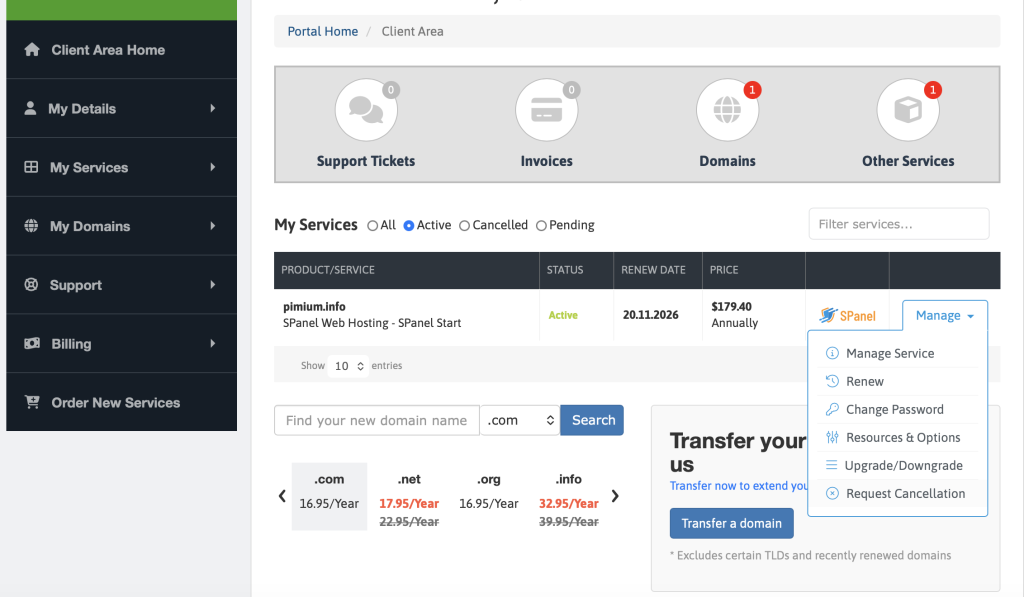
When ready to close the account, log into the ScalaHosting client portal, locate the hosting subscription, and submit a cancellation by clicking Manage then Request Cancellation. Or let it lapse without renewal.
The Failures That May Happen in Practice
| Issue | Cause | Fix |
|---|---|---|
| Media files missing after import | Cloudflare blocking import bot | Set security to “Essentially Off” during import, then re-run |
| Theme looks broken | Customizer settings don’t transfer in XML | Reconfigure Customizer manually after activating theme |
| Menus are empty | Navigation menus don’t export via WXR | Rebuild menus manually under Appearance > Menus |
| Contact form not sending | Plugin needs reconfiguration | Reinstall form plugin and reset email notification settings |
| Google Analytics shows gap | Tracking code needs reconnecting | Add GA4 tracking via Site Tools or plugin |
Not every issue on this list will show up on every migration. Most are fixable in under an hour. The ones that take longer are the ones worth knowing about before you start, not after.
What Actually Changes After the Move
Moving to WordPress.com removes real operational overhead. But it also shifts who controls the environment. These are the trade-offs that surfaced after running the full migration and maybe some websites may face, listed plainly so the decision is clear before you start.
| Limitation | What it means in practice | Who it affects |
|---|---|---|
| No server-level access | No .htaccess, no SSH on lower plans, no custom cron jobs, no direct database access | Sites with complex redirect structures, server-side scripts, or custom server rules |
| Storage caps | Personal plan: 6 GB. Business plan: 50 GB. Tighter than most shared hosting plans | Media-heavy sites with years of high-resolution images or video uploads |
| Theme portability | Visual configuration does not transfer. Premium and custom-built themes may not exist in the WordPress.com ecosystem | Sites running proprietary page builders or heavily customized parent/child themes |
| Plugin edge cases | A small subset of plugins are blocked by WordPress.com regardless of plan | Sites relying on niche or custom-built plugins |
| Managed update cycle | Core and plugin updates happen on WordPress.com’s schedule, not yours | Anyone who needs granular control over when updates are applied |
For anyone who just needs a fast, secure platform without the server headaches, WordPress.com is the straightforward answer. The infrastructure is handled, the security is built in, and the platform scales to handle any kind of site with the right plan and configuration. The calculus flips if you’re managing a stack of client sites rather than one blog, at that point the cost math on a self-managed VPS can outweigh the convenience of handing server control over entirely. If Pressable is also on your shortlist as a managed alternative, our full comparison of the best Pressable alternatives lines WordPress.com up against it directly, along with Kinsta, WP Engine, and Cloudways.
And the setup takes less time than you think. I’ve also documented how fast a full build can go on WordPress.com, in that case a client site finished in a single sitting. Get started on WordPress.com and skip the shared-hosting time consuming maintenance for good.