

Every AI writing tool I’ve used has the same problem. You explain your brand once, close the tab, and next session it’s gone. Start over. Re-explain the tone, the banned words, the formatting quirks. Every single time.
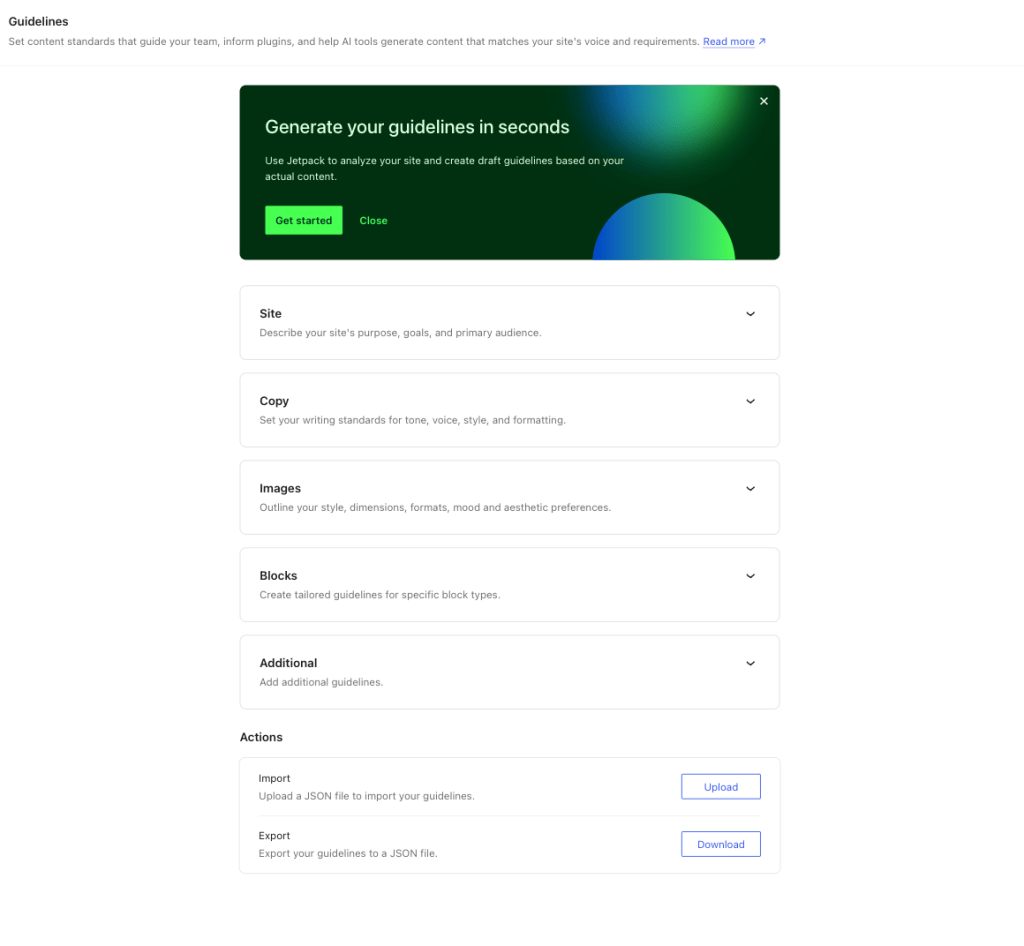
WordPress.com just shipped a feature meant to fix that for its own AI tools. It’s called WordPress.com Guidelines, and it lives at Settings > Guidelines on eligible sites. I set it up on a test site I run specifically for this kind of thing, and I want to walk through exactly what I found. Not the marketing version. What actually happened when I clicked around.

What Are WordPress.com Guidelines?
Strip away the branding. It’s simple. WordPress.com Guidelines is a stored set of content standards for your site. Purpose, audience, voice, image rules, block-specific instructions, whatever else your team needs written down. Once it’s saved, compatible AI tools on that site can read it. No more typing the same brand brief into a chat window for the hundredth time.
That’s the whole idea. Memory that belongs to the site, not to one conversation. It requires administrator access to view or edit, but once it’s saved, anyone else on the site, editors, authors, contributors, gets it applied automatically the moment they use a compatible AI writing tool. Nobody has to go find the brand doc and copy-paste it in. It’s a similar principle to what I ran into doing AI-assisted site builds on WordPress.com: the more context lives on the platform itself, the less you have to repeat yourself.
It’s early release right now, so it’s not sitting on every WordPress.com site yet. And here’s the part that matters for anyone testing this themselves: writing your own content guidelines by hand is free wherever the feature has rolled out, no plan requirement attached. Having AI read your existing content and draft guidelines for you, that part needs a Personal, Premium, Business, or Commerce plan. Free sites get shown an upgrade path instead of the generate option.

The Five Guideline Sections at a Glance
Guidelines covers five sections: Site (purpose and audience), Copy (tone, voice, formatting), Images (style, dimensions, mood), Blocks (rules for individual block types), and Additional (anything else your team needs on record, accessibility requirements, compliance standards, terms that should never appear on the site). Each one does a different job, and skipping straight to Copy without touching the others is the most common way people undersell the feature.
| Section | What it controls | Example rule I’d actually write |
|---|---|---|
| Site | Purpose, audience, overall goals | “This site sells handmade ceramics to buyers in their 30s and 40s who care about sustainable materials.” |
| Copy | Tone, voice, sentence structure, formatting | “Keep sentences under 20 words on average. Never open a paragraph with a question.” |
| Images | Style, mood, composition, dimensions | “Natural light only. No stock photos with visible watermarks or staged studio backdrops.” |
| Blocks | Rules tied to a specific block type | “Buttons block: never use ‘click here.’ Name the actual destination instead, every time.” |
| Additional | Anything else, compliance, banned terms, accessibility | “Never use the word ‘cheap.’ Use ‘affordable’ or ‘budget-friendly’ instead.” |
Notice how specific the right-hand column gets. “Sound professional” isn’t a guideline. It’s a wish. “Keep sentences under 20 words” is different. An AI tool can actually check itself against that.
How to Set Up a WordPress.com Content Guideline (Step by Step)
I didn’t want to test this with something vague. Vague rules don’t tell you anything. Not about whether a feature works, not about anything else. So I picked something specific and genuinely useful to how I write: a copy rule banning the exact filler phrases I already spend time deleting by hand. Things like “in today’s digital landscape” and “it’s important to note.”
Here’s the actual sequence:
- Go to Settings > Guidelines from the site dashboard.
- Open the Copy section.
- Write the rule out plainly. Mine read: “No generic AI filler openers. No ‘in conclusion.’ Get to the point in the first sentence. No em dashes.”
- Click Save guidelines.
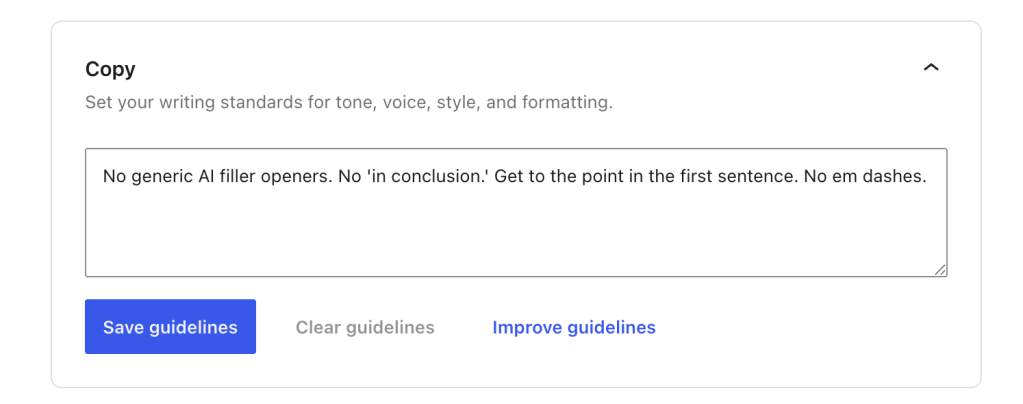
No confirmation popup, no fireworks. It just saves like any other settings field, which is exactly what you want from something meant to work quietly in the background instead of demanding attention.
Since I chose the manual route, one thing to flag: each section also has a Generate guidelines option that reads your existing site content and drafts a suggestion for you to accept, edit, or dismiss. That’s the part gated behind the paid plans mentioned above. I wrote mine by hand instead, mostly because I already knew exactly what I wanted the rule to say, and typing it out took less time than reviewing an AI draft of it.
If a section already has AI-generated guidelines sitting in it, there’s a separate Improve guidelines link that has AI refine what’s there instead of starting over. That one’s specific to AI-drafted sections. It won’t show up on a section you wrote by hand, like the one I just saved.
Does the AI Actually Follow WordPress.com Guidelines?
This is the part I cared about most. A saved rule means nothing if the tools reading it ignore it. Words on a settings page don’t count for much on their own.
I opened the site’s AI writing assistant right after saving the rule and asked it to draft a short intro paragraph for a new post. The first draft came back clean on the big offenders: no “in today’s digital landscape,” no “in conclusion.” One soft filler line slipped through anyway, an opener that started with “when it comes to,” which wasn’t on the banned list I wrote but is the same category of throat-clearing.

I ran it a second time on a different topic and got a tighter result, no filler openers at all, but it did add an em dash mid-sentence despite the rule telling it not to. So: mostly followed, not perfectly. It respected the specific phrases I named and missed the general instinct.
One thing worth saying clearly: WordPress.com Guidelines is context for AI to work with, not a lock. Like all AIs nothing forces the output to obey the rule. You’re still the one accepting, editing, or dismissing whatever comes back. No hard filter here. Know that going in.

Does It Also Work for AI-Generated Images?
I didn’t test this part myself, so I’m not going to pretend I did. WordPress.com’s own documentation lists two things compatible AI tools can read from Guidelines: writing assistants generating or editing text, and image generation tools creating visuals. That second one means whatever you write in the Images section, lighting preferences, composition rules, no staged stock photos, is meant to feed into image generation the same way the Copy section feeds text generation.
If your workflow leans on AI-generated visuals more than AI-generated copy, the Images section is worth setting up first, even before Copy. I just can’t tell you from firsthand testing how well it actually holds up, since my test here was writing-only.
WordPress.com Guidelines vs. Chat-Based AI Memory
Quick comparison, because this is the actual shift worth paying attention to. If you’ve been pasting a brand brief into a separate AI chat tool every time you need copy, that context lives in one thread. Close it, lose it. Switch devices, lose it. Bring in a second person on your team, they don’t have it either.
WordPress.com Guidelines sits with the site itself. Anyone with access, and any compatible AI feature working on that site, reads from the same standards. You’re not maintaining a prompt document in a doc somewhere hoping people remember to check it before they paste it in. It’s part of the same shift I’ve been restructuring content for how AI actually reads it, just applied to brand voice instead of search visibility.
That’s not nothing. It’s also not magic. The context only helps the surfaces built to support it, and WordPress.com is upfront that not every AI tool reads Guidelines yet.
Blocks, Import, Export, and Revision History
Block guidelines work a little differently from the other four sections. Instead of one text box, you pick a block type from a dropdown, a Heading block, a Buttons block, an Image block, and write a rule specific to that block. It’s more granular. It’s also the section most people skip, because it takes longer to set up than it looks like it should.
A few block-level rules worth stealing if you’re starting from zero:
Heading block: title case is fine, but cut anything past 10 wordsButtons block: no generic "click here" or "learn more," name the actual actionImage block: require alt text, reject anything under 800px wide
Everything is editable after the fact too. An Actions section at the bottom of the settings page handles the rest: Export downloads the full set as a guidelines.json file, Import uploads a file to replace what’s currently saved, and Revision History lets you browse and restore earlier versions if a change breaks something.
A few things this is not, since the marketing around new features tends to blur lines:
- It’s not part of WordPress core. This is a WordPress.com hosted feature.
- It’s not the same thing as WordPress Agent. Agent is one documented consumer of Guidelines, and WordPress.com’s own setup guide describes it using saved guidelines to keep content and images consistent across WordPress.com, Telegram, and email. Guidelines itself is just the stored data underneath, and other AI tools can read it too.
- It’s not a guarantee. AI output can still miss the rule, contradict it, or need editing.
Frequently Asked Questions About WordPress.com Guidelines
Does WordPress.com Guidelines work on a self-hosted WordPress.org site?
No. This is a WordPress.com hosted feature tied to Settings > Guidelines on WordPress.com-hosted sites.
A self-hosted WordPress.org install running its own server doesn’t have this settings screen. Different platform entirely, and it’s one more reason to put WordPress.com on your shortlist if you compare it against the best WordPress hosting providers before picking where to build.
What happens to my saved guidelines if I downgrade my plan?
WordPress.com’s documentation doesn’t spell this out directly, so treat this as the logical read rather than a confirmed policy: the guidelines you’ve already written are stored in site settings, not tied to a plan tier, so there’s no stated reason they’d vanish.
What the plan requirement clearly gates is the Generate guidelines and Improve guidelines buttons themselves, since those need a Personal, Premium, Business, or Commerce plan. If you’re planning a downgrade and this matters to you, export your guidelines.json first and confirm with WordPress.com support before you do it.
Can two people edit Guidelines on the same site without overwriting each other?
Only site administrators can access the Guidelines screen at all, which limits how often this comes up. WordPress.com’s documentation doesn’t describe any live co-editing protection on this screen, so the safe assumption is standard last-save-wins behavior, the same as most single-field settings pages.
If a change gets overwritten by accident, Revision History is there to browse and restore an earlier version.
Does deleting a guideline affect content I already published?
No. Guidelines only shape new AI-generated suggestions going forward. Nothing retroactive.
Removing or changing a rule doesn’t touch anything already saved to a post or page, and it won’t flag older content as non-compliant.
How many guidelines can I add before it stops being useful?
There’s no hard limit stated anywhere. But in practice, a section with fifteen rules stacked on top of each other stops being something an AI tool, or a human, can reliably hold onto.
Shorter lists win. More specific lists win too. They tend to get followed more consistently than long, vague ones.
Do WordPress.com Guidelines apply to plugins I’ve installed separately, or only to WordPress.com’s built-in AI tools?
Only to AI features and plugins built to read Guidelines. Not everything qualifies. WordPress.com doesn’t force every plugin on your site to check this settings screen. If a third-party plugin doesn’t specifically support Guidelines, it’ll keep generating content the way it always has, rule or no rule.
Conclusion
If you’re running a WordPress.com site with more than one person touching content, or you’re tired of re-explaining your voice to whatever AI tool you’re using that week, WordPress.com Guidelines is worth ten minutes of setup. Start with one section. Pick the rule that annoys you the most every time it gets broken. Write it down. Save it. See what happens the next time a compatible AI feature runs on your site.
Don’t try to write all five sections in one sitting. You’ll end up with generic filler guidelines that don’t actually constrain anything, which defeats the point of setting them up at all. One sharp rule beats ten vague ones.
WordPress.com’s own guidance on this backs up what I found through trial and error. Specificity beats vague direction every time, examples of what “good” looks like help more than another adjective, guidelines need periodic revisiting as your voice shifts, and starting with just Site and Copy before touching Blocks keeps the whole thing from becoming a chore nobody finishes.
If you want the official rundown straight from WordPress.com, their setup guide covers every field on the settings page in more detail than any third-party writeup will.