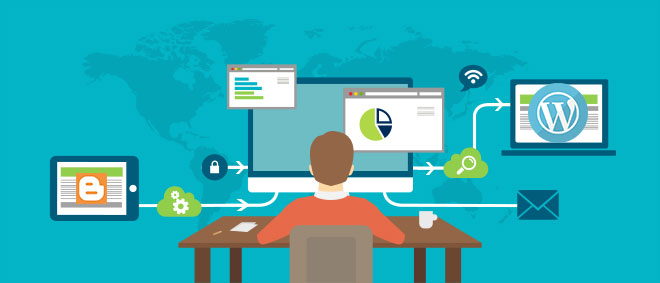

Blogger is a great tool for beginners, but once a blogger starts to realise the perks of having full control over their content, then WordPress becomes the next best option. There is a lot of information about how to migrate your blog or site. The hardest part about this move is trying to find and discern the right steps to take.
Explained in this post are the only six steps you should use to successfully move from Blogger to WordPress and still manage to keep all of your backlinks and Google rankings.
1. Buying a Hosting Package
First, you need to buy a web hosting package and a domain name. Simply sign up for the right WordPress hosting provider and then move on to install WordPress on your new hosting account.
After you install WordPress on your purchased domain, you should be ready to move your content.
2. Exporting Content from Blogger
You first need to export your Blogger content to WordPress.
Log into your Blogger account, access Settings ˃˃ other. Click Back-Up Content under Import & Back-up.
This will download the content in your Blogger account to your computer and save it as an XML file.
3. Importing Content to WordPress
First, you need to have your own WordPress Hosting plan where you can install WordPress, then simply go to your WordPress admin, then to Tools ˃˃ Import.
You will be prompted to choose the site that you want to import content from, select Blogger.
Another pop-up menu should appear asking you to install Blogger to the WordPress importer. Click Install and WordPress will download the Blogger Importer plugin to your WordPress, and after that, you will need to activate the plugin and run the importer by clicking Activate Plugin & Run Importer, you will be asked to upload the XML file that was downloaded from Blogger.
To do this, click on the File button and find the XML file wherever you saved it.
Your content will then be imported to WordPress, and after it is done, remember to assign either a new or existing author to the imported content/articles.
4. Setting up the Permalinks
The URL structure used by WordPress is different from the one used by Blogger, but to make them somewhat align, then this step is crucial.
To do this, go to Settings ˃˃ Permalinks, and select Month and Name as the structure of your permalink.
5. Redirecting
The first thing you have to do is redirect users from Blogger to WordPress. The second thing is to redirect these users to the exact post they were trying to find.
a- For the first step, use a plugin. Blogger 301 Redirect was built with functionalities to help with this. Simply install and activate it then follow the instructions to redirect users from Blogger to WordPress.
b- For the second step, go to Settings ˃˃ other in Blogger.
Next, to the Post Feed Redirect section, click Add and then enter the new URL of your website.
6. The Images
The WordPress importer should be able to import all the images, but some may be left behind. You need to find these images and download them, then go to your WordPress dashboard then click Media ˃˃ Add New and the images will be imported to your new WordPress website.
Do some cleaning up afterward to make sure you have all your content, images, and that all your backlinks work. Your shiny new website should now be good to go.